
Hermes Agent Configuration
Hermes Agent is an open-source terminal AI coding tool by Nous Research. It connects to the TokenSwitch platform via protocols such as Anthropic and OpenAI.
1. Install Hermes Agent
Installation per platform is shown below. For full installation options, prerequisites, and troubleshooting, see the official installation guide.
Linux / macOS / WSL2
curl -fsSL https://hermes-agent.nousresearch.com/install.sh | bashWindows (native PowerShell)
iex (irm https://hermes-agent.nousresearch.com/install.ps1)Android / Termux
Run the same install command as Linux in Termux. The install script auto-detects Termux and switches to the Android-specific flow (installing system dependencies via pkg):
curl -fsSL https://hermes-agent.nousresearch.com/install.sh | bashNotes:
The install script automatically installs dependencies such as Python 3.11, Node.js, ripgrep, and ffmpeg, and creates a managed, isolated environment at
~/.hermes/hermes-agent. This is the only officially supported installation method — do not usepip install hermes-agent.To install both the CLI and the desktop app, download the Hermes Desktop installer from the official website.
After installation, reload your shell and verify. If a version number is printed, the installation succeeded:
source ~/.bashrc    # or source ~/.zshrc if you use zsh
hermes --version
2. Configure Access Credentials
First create an API Key on the platform. The model ID can be copied from the "Portal / Model Marketplace". Connection parameters:
| Field | Description |
|---|---|
model.provider | Must be set to custom (Hermes uses OpenRouter by default). |
model.base_url | . Anthropic protocol clients append /v1/messages on their own — do not add /v1 at the end (see "About the /v1 in the Base URL" in Cline Configuration). |
model.api_mode | Set to anthropic_messages. |
model.api_key | Your platform API Key. |
model.default | Default model ID. Claude series models are recommended. |
Choose any one of the following three configuration methods. Replace YOUR_API_KEY with your real API Key.
Method 1: hermes config set commands (recommended)
hermes config set model.provider custom
hermes config set model.base_url {{apiUrl}}
hermes config set model.api_mode anthropic_messages
hermes config set model.api_key YOUR_API_KEY
hermes config set model.default claude-sonnet-4.5
Hermes automatically writes each value to the right file: secrets go to ~/.hermes/.env, non-secret settings go to ~/.hermes/config.yaml.
Method 2: interactive hermes model setup
hermes modelFollow the interactive prompts: select Custom endpoint (enter URL manually), enter the Base URL and API Key, choose the API compatibility mode, then enter the model ID. Handy if you don't want to remember parameter names. The interactive flow is shown below (using the OpenAI-compatible protocol as an example):
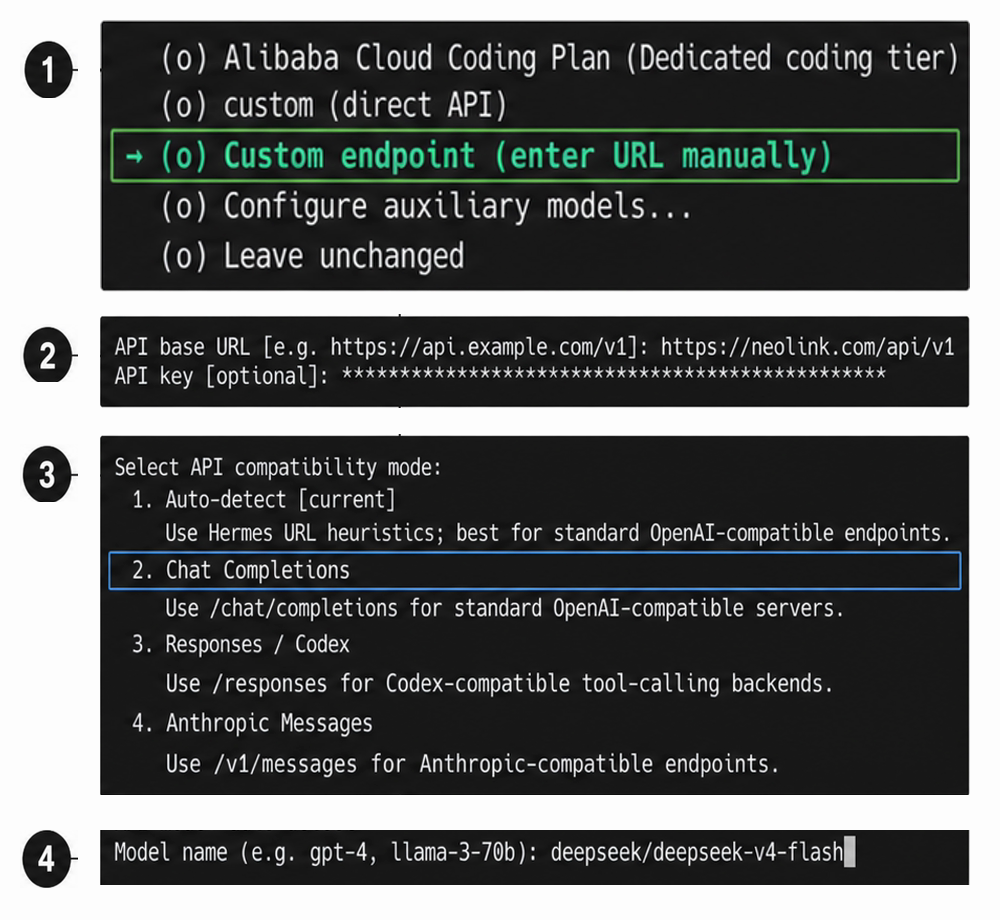
Note that the Base URL must match the API compatibility mode (step ④): with
Auto-detectorChat Completions(OpenAI-compatible), use (as shown in the screenshot); withAnthropic Messages, usehttps://neolink.com/apiwithout/v1(consistent with the table above).
Method 3: edit the config file directly
Edit ~/.hermes/config.yaml:
model:
  default: claude-sonnet-4.5
  provider: custom
  base_url: {{apiUrl}}
  api_mode: anthropic_messages
  api_key: YOUR_API_KEY
For security, prefer writing the key via Method 1 (it is stored in
~/.hermes/.env, separate from regular settings) instead of keeping it in plain text inconfig.yaml.
Note: Hermes Agent requires models with a minimum context window of 64K tokens. Choose a model that meets this requirement.
3. Verify the Configuration
After configuration, send a test message:
hermes chat -q "Hello"If a normal reply is returned, the configuration succeeded. For daily use, two interfaces are available:
hermes            # classic CLI
hermes --tui      # modern TUI (recommended)
To switch models, use the -m flag:
hermes chat -m claude-opus-4.54. FAQ
If you encounter an error during configuration, use the HTTP status code together with the code and message fields in the response body to troubleshoot against the User Error Code Guide.
Still connecting to OpenRouter after configuration
Hermes Agent uses OpenRouter as its inference provider by default. When connecting to the platform, model.provider must be set to custom. Run the following command to confirm:
hermes config set model.provider customError 401 Authentication Failed
The API Key is incorrect or expired. Log in at https://neolink.com/ and verify or recreate it on the "API Key" page. See HTTP 401 — Authentication Failed.
Error 404 Invalid URL
Usually caused by an extra /v1 at the end of model.base_url. With the Anthropic protocol it should be . See HTTP 404 — Not Found.
5. Official Documentation
For more feature descriptions, please refer to:
https://hermes-agent.nousresearch.com/docs/getting-started/quickstart