Token Plan Enterprise Team Management
Enterprise administrators can add members, assign and reclaim seats, and view team seat usage.
Member Management
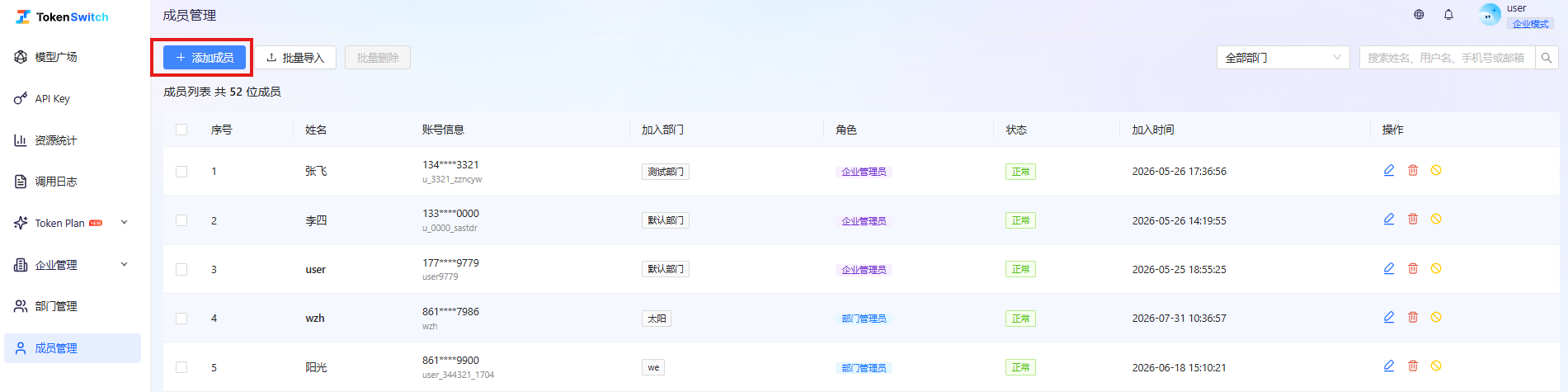
Adding Members
- Go to Member Management in the left navigation.
- Add the enterprise members who need to use Token Plan; no need to add members that already exist.
- After adding them, go to Token Plan > Enterprise Subscription to assign seats.
Removing or Disabling Members
- Disabling a member: The API Key stops serving calls, but the member's assigned Token Plan seat remains occupied; usage can be restored after re-enabling.
- Removing a member: The member leaves the enterprise, their assigned Token Plan seat is automatically reclaimed and returns to the unassigned state, and can be reassigned to other members.
Seat Management
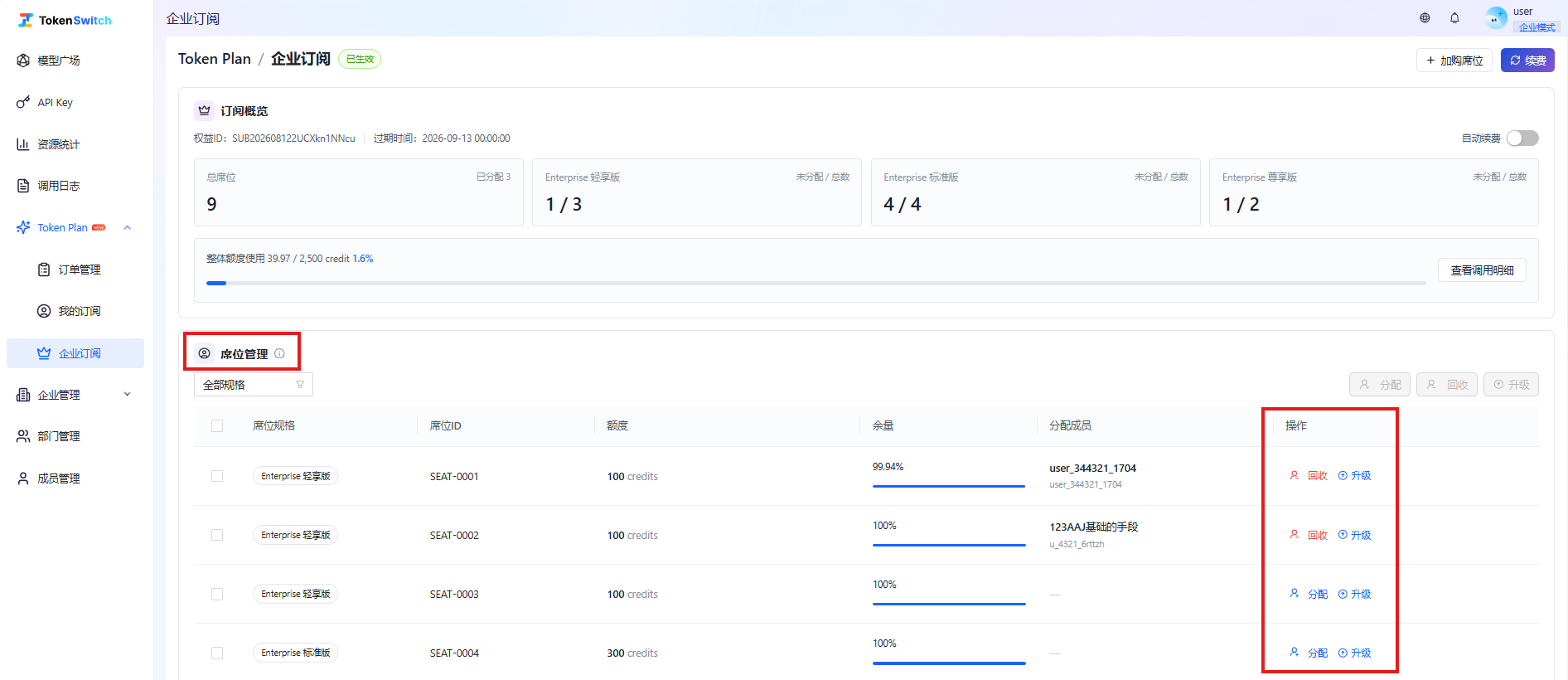
Go to Token Plan > Enterprise Subscription to view all seats. Enterprise administrators can filter seats by status and perform operations such as assigning, reclaiming, upgrading and viewing details.
Assigning a Seat
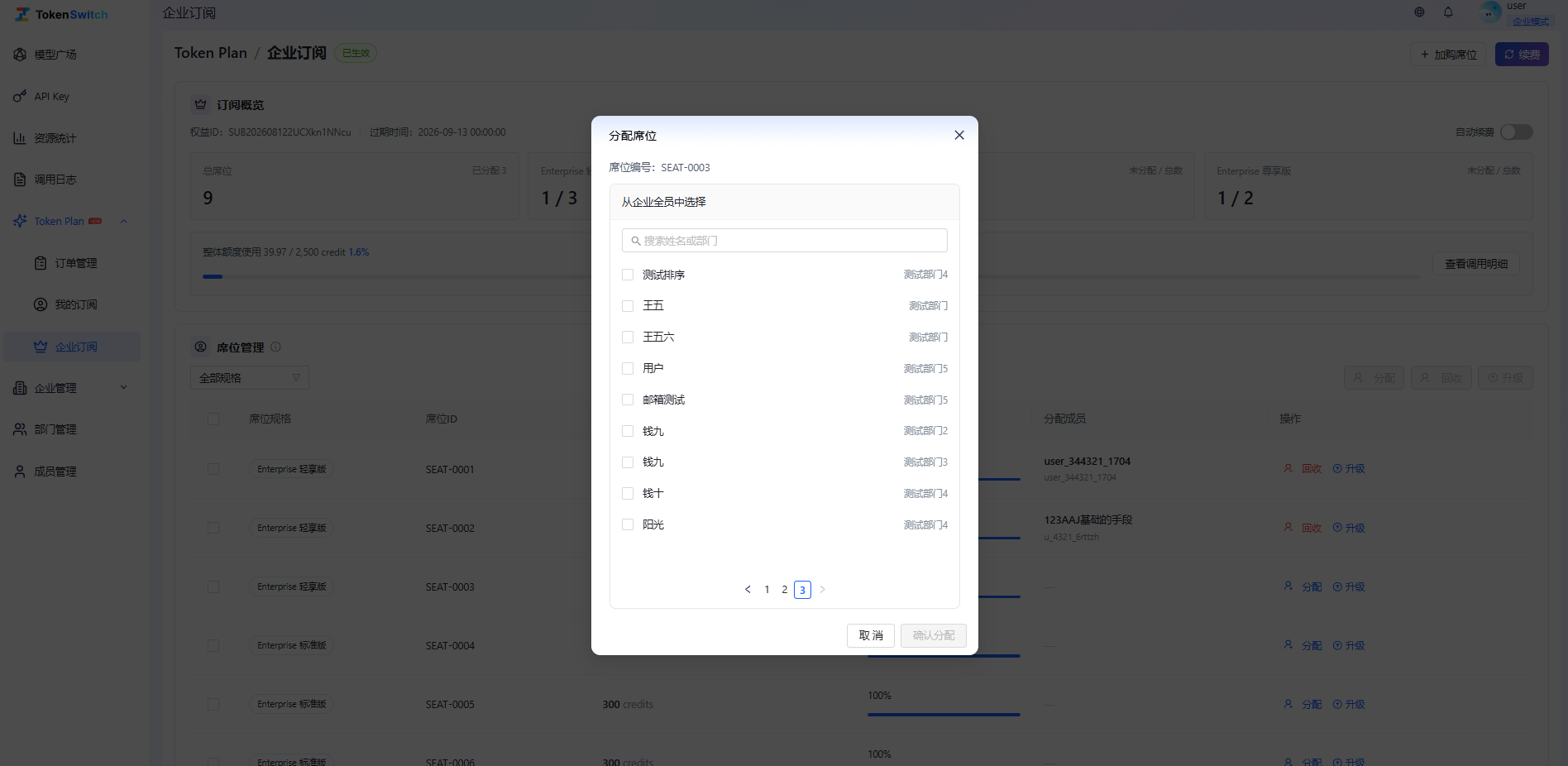
- Find a seat in the "Unassigned" status and click Assign.
- Select an enterprise member and confirm.
- After assignment, the member can go to My Subscription to generate their dedicated API Key.
Each member can hold only one seat at a time, and each seat can only be assigned to one member at a time.
Reclaiming and Reassigning a Seat
Find the assigned seat in the seat list and click Reclaim. After reclaiming, the seat returns to the unassigned state, the previous member can no longer use it, and the administrator can reassign it to other members.
Upgrading a Seat
Select the target seat and click Upgrade, choose a higher tier and submit the order. Specific upgrade rules and fees are subject to the plan overview and the order page.
Viewing Usage
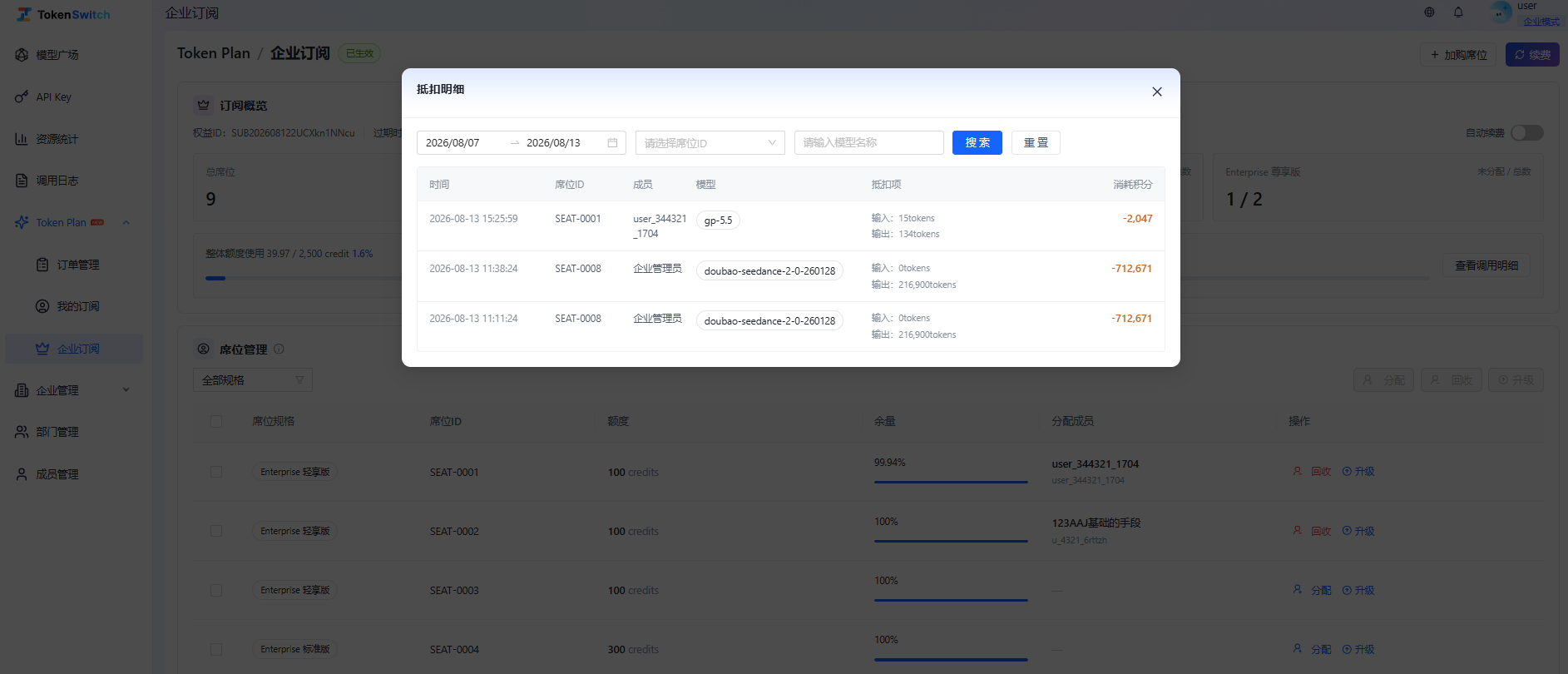
- In the seat list, view each seat's tier, assigned member, quota usage progress and expiry date.
- Click View Usage Details to see the usage records of a seat.
- Enterprise administrators can analyze team usage in Resource Statistics by member, model and time range.