Personal Space Guide
1. Model Plaza
Before officially starting to call models, you can enter the "Model Plaza" to view the list of models currently supported for calling. Over 100 global models have been launched, and more will continue to be tracked and launched in the future.
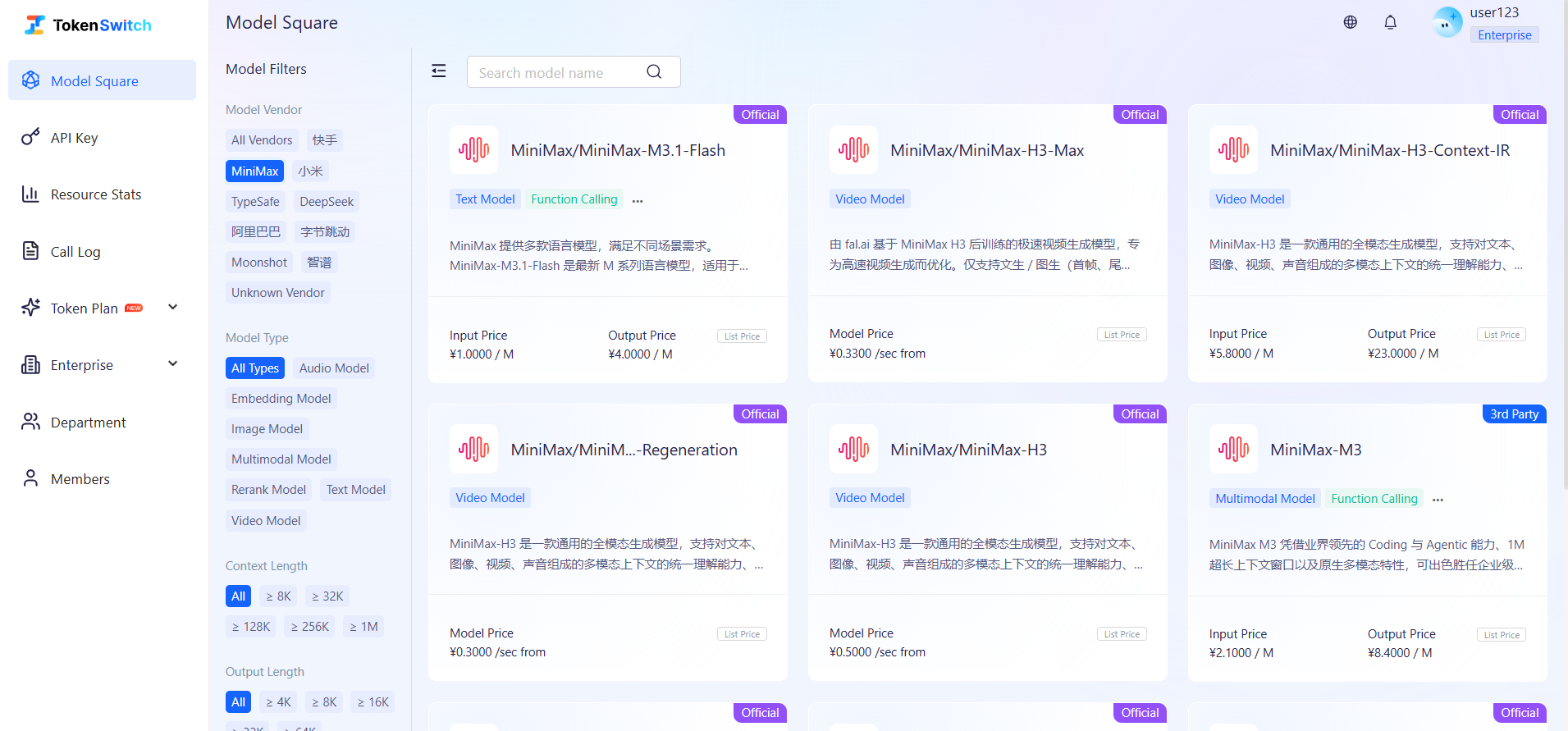
- Multi-dimensional Filtering: You can quickly locate models by model vendor, capability tags, discount groups, billing types, endpoint types, and other dimensions.
- Price Transparency: Each model card clearly displays the model's [Official Original Price]. Click the details page to view model information, endpoint information, exclusive discount group prices, context length, and other information. Actual calling costs are based on the group bound to the current API Key and the billing rules hit by the call.
- Technical Support: Click API documentation to quickly navigate to technical documentation for calling details. https://neolink.com/docs/index
2. API Key Management
2.1 Creation Process
STEP1: Enter the "API Key" page
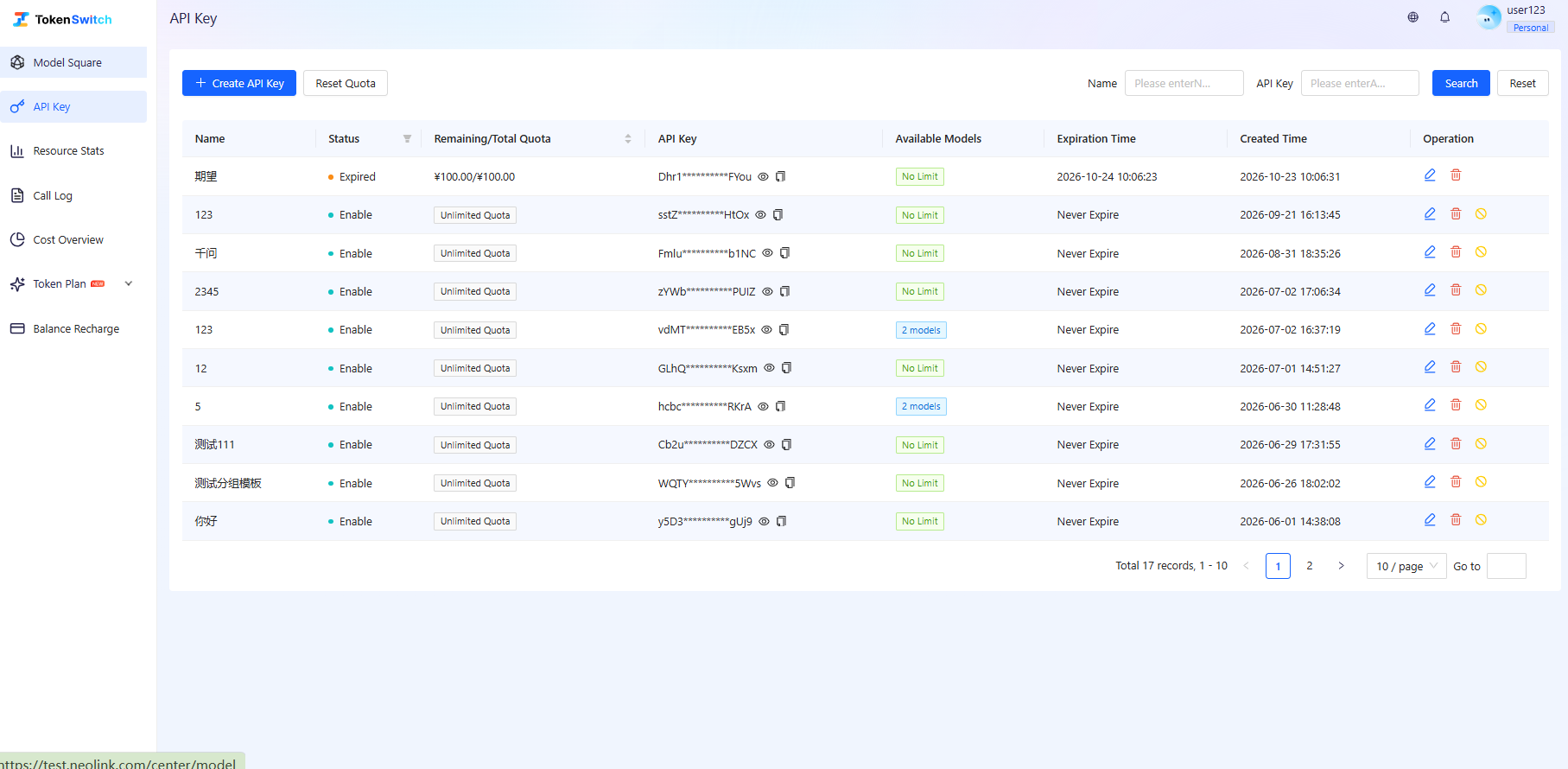
STEP2: Click "+ Create API Key" and configure basic information
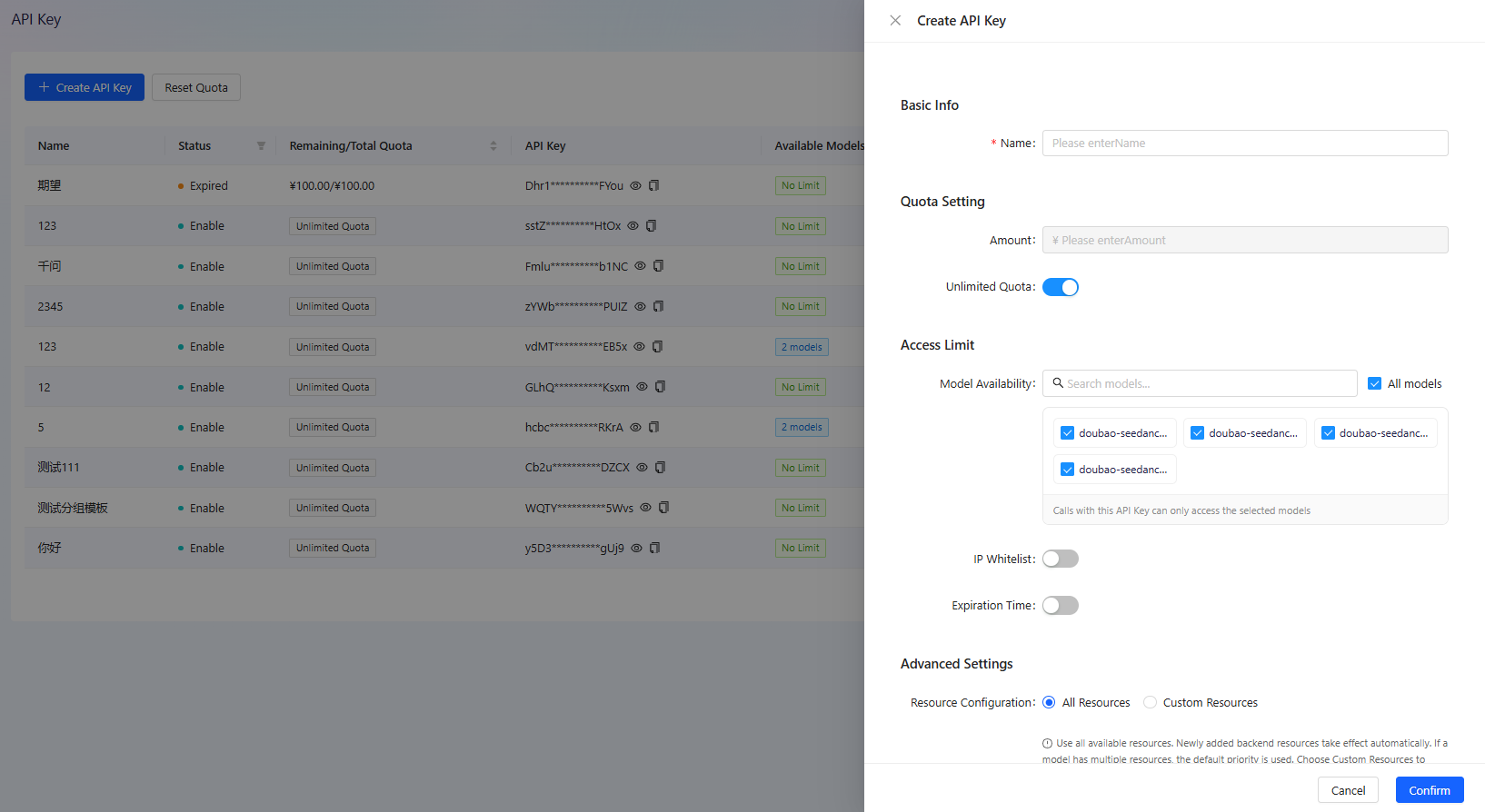
To successfully create a key, you need to enter Key Name, which is a required field, while the remaining fields use their default values.
STEP3: Other Optional Configurations
If you have more requirements, you can choose Quota Limit, Access Model List, IP Whitelist and other advanced features for refined management.
- Quota Limit: You can set a specific usage amount limit for each API Key, or check "Unlimited Quota". Once the Key consumption reaches the set amount, the system will automatically stop the Key's calling service to prevent budget overruns.
- Model List: You can select specific models that the Key is allowed to call to achieve permission isolation. For example, you can configure a test Key to only call cheaper models while restricting it from calling high-cost models. If not filled, it defaults to supporting all available models.
- IP Whitelist: Supports entering specific IP addresses allowed to call this API. Through IP Whitelist, even if the API Key is accidentally leaked, servers not in the whitelist cannot initiate requests, fundamentally eliminating the risk of unauthorized use. If not filled, there is no restriction on access sources.
2.2 API Key List Management
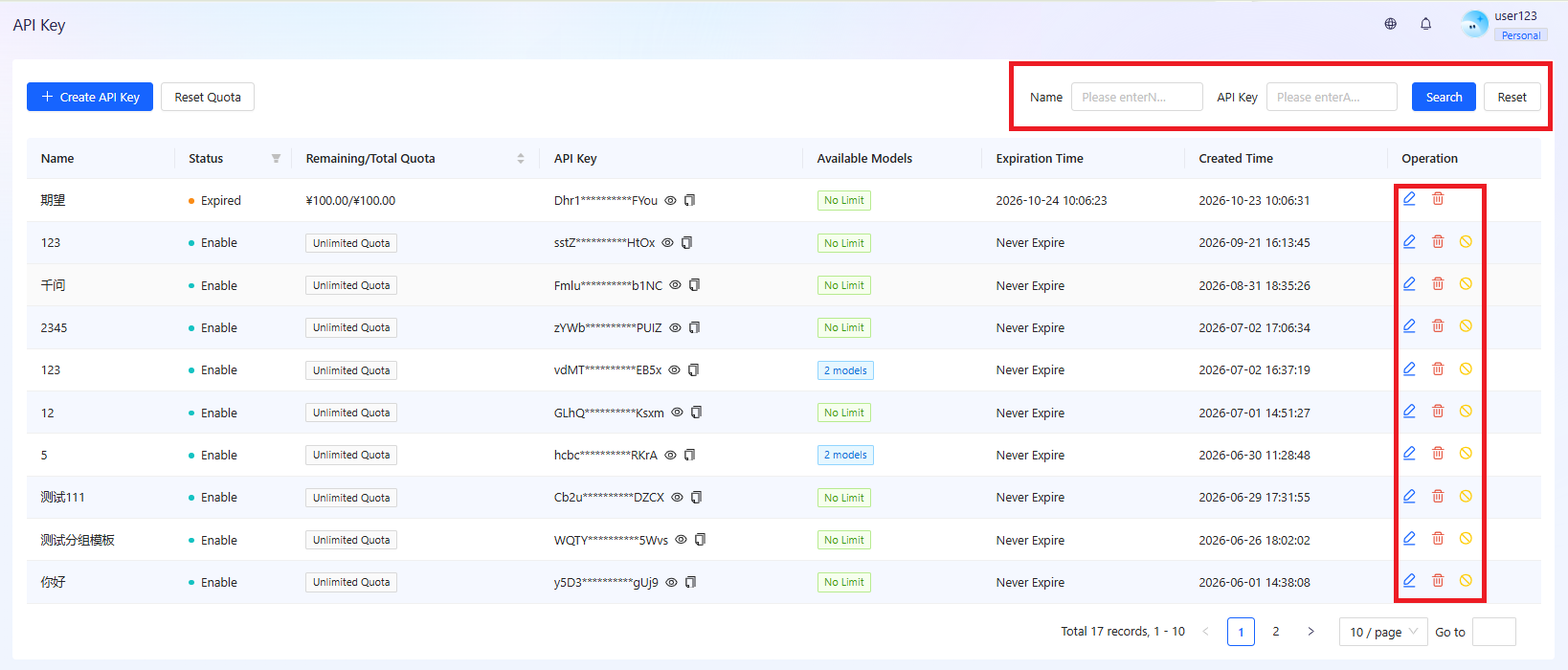
- Search and Filter: Supports quick retrieval through "Name" or "API Key" strings. When there are many Keys, it helps you find target entries in seconds.
- Quick Management:
- Status Toggle: Click the "Disable" icon to disable the Key with one click; click "Enable" to restore service. When a Key leak is suspected, this is the fastest protective measure.
- Edit and Update: Click the "Pencil" icon to modify quota, IP whitelist, or model list and other advanced configurations at any time.
- Delete Credential: Click the "Trash" icon to permanently remove the Key.
- Data Refresh: Click the "Sync/Refresh" icon in the upper right corner to synchronize the Key's remaining quota status in real-time.
3. Monitoring and Analysis
The platform provides refined statistics functions, making the destination of every penny clearly visible.
3.1 Calling Logs
In "Calling Logs", you can track the details of every request in real-time, including calling time, model used, Token consumption, and specific cost.
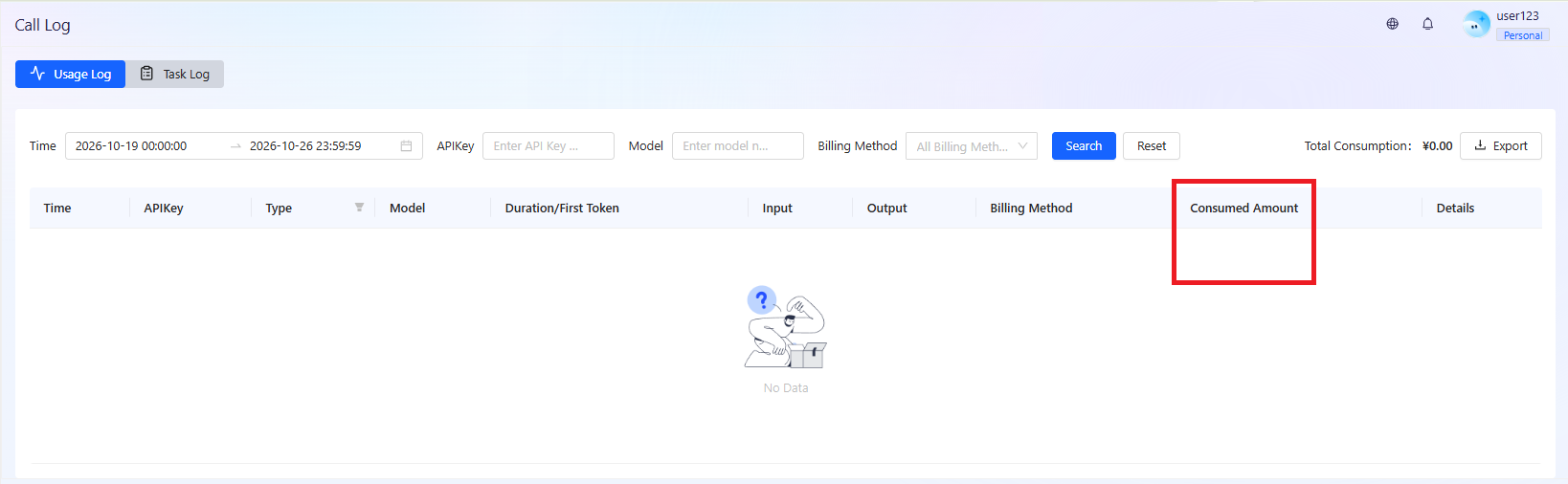
Precise Search and Filtering: The log system supports high-performance retrieval functions. Click the "Expand" button to precisely locate data.
- Time Filter: Customize query time range.
- API Key Filter: Lock specific project or user consumption based on specific "API Key Name".
- Model Search: Enter model keywords to view the calling frequency and success rate of that specific model.
- Log Type: Distinguish between consumption, error, and other different types of business logs.
Quick Dashboard: The top of the page displays in real-time the Total Consumption within the current filter range, giving you an overview of performance trends during that period.
Log Field Analysis
| Field Name | Description |
|---|---|
| Duration/First Token | Records the total request response time and the delay of the first token generation, which is a core metric for measuring LLM experience. |
| Input/Output | Details the number of Input Tokens and Output Tokens consumed by this request. |
| Billing Method | Pay-as-you-go |
| Consumption Amount | The specific amount consumed |
| Details/Status | Click the details icon on the right to view request status. If it shows failed, the details will include error codes. |
3.2 Resource Statistics
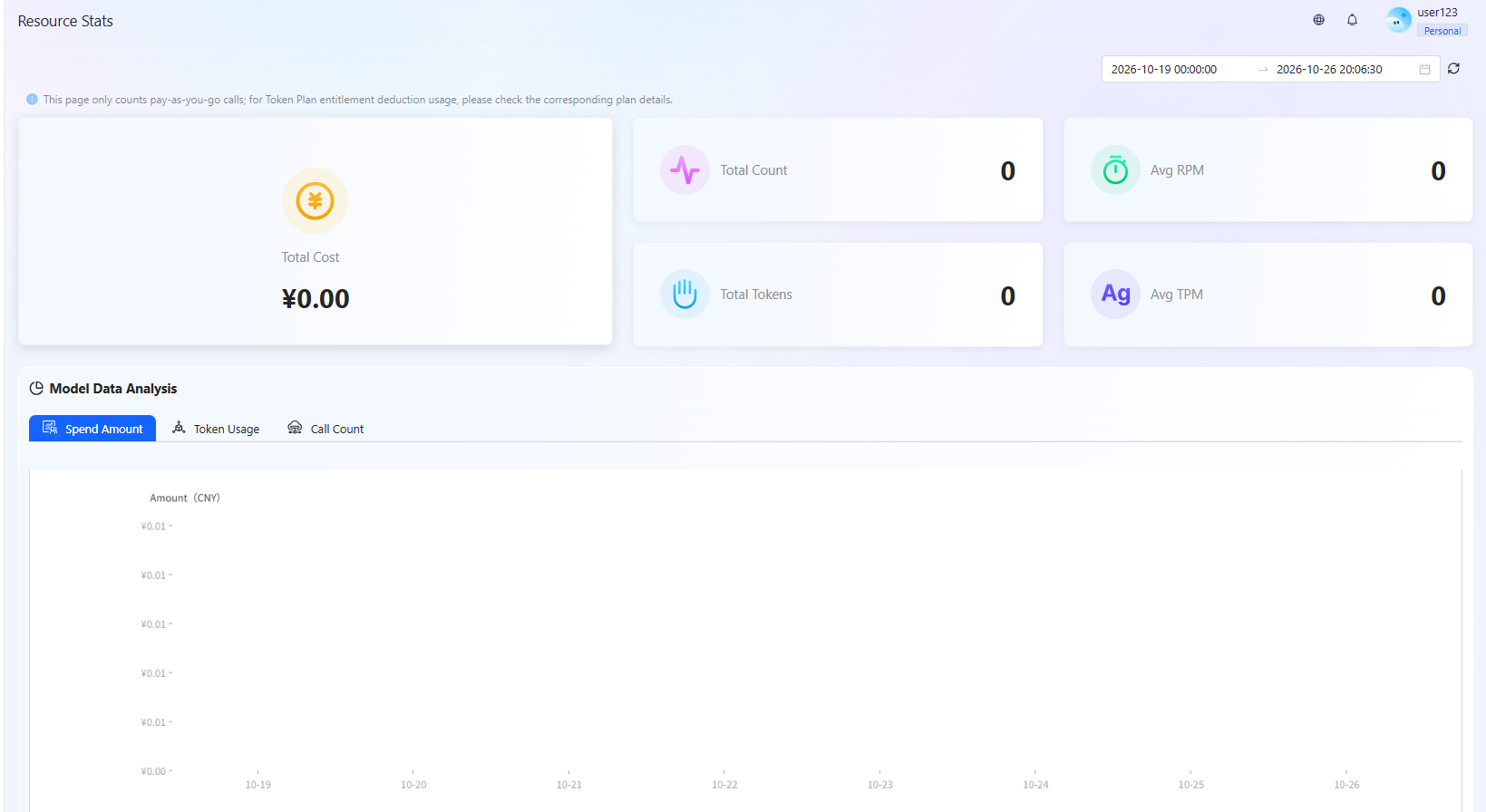
On the "Resource Statistics" page, you can view summarized visualization charts:
- Core Financial and Usage Metrics: The dashboard top displays real-time statistics of all data within the selected time range.
- Total Consumption: Shows the actual cost of all API calls under the current filter conditions.
- Total Requests: Records the total number of successful requests.
- Total Tokens: Shows the total Token consumption (including input and output), which is the most core basis for billing.
- Key Performance Metrics: Determine backend business concurrency pressure.
- Average RPM (Requests Per Minute): Average number of requests per minute. If the value spikes abnormally, there may be malicious API calls or business explosion growth.
- Average TPM (Tokens Per Minute): Average Token consumption per minute, reflecting the text throughput processed per unit time.
- Model Data Analysis and Distribution Charts: Display by the filtered time range.
- Consumption Amount, Token Usage, Call Count, API Usage Ranking: displayed as interactive bar charts; hovering shows the corresponding model's consumption.
- First-level Department, Direct Members, and Sub-department Usage Ranking: display the corresponding charts according to different permission views.
4. Recharge and Alerts
4.1 Recharge Methods
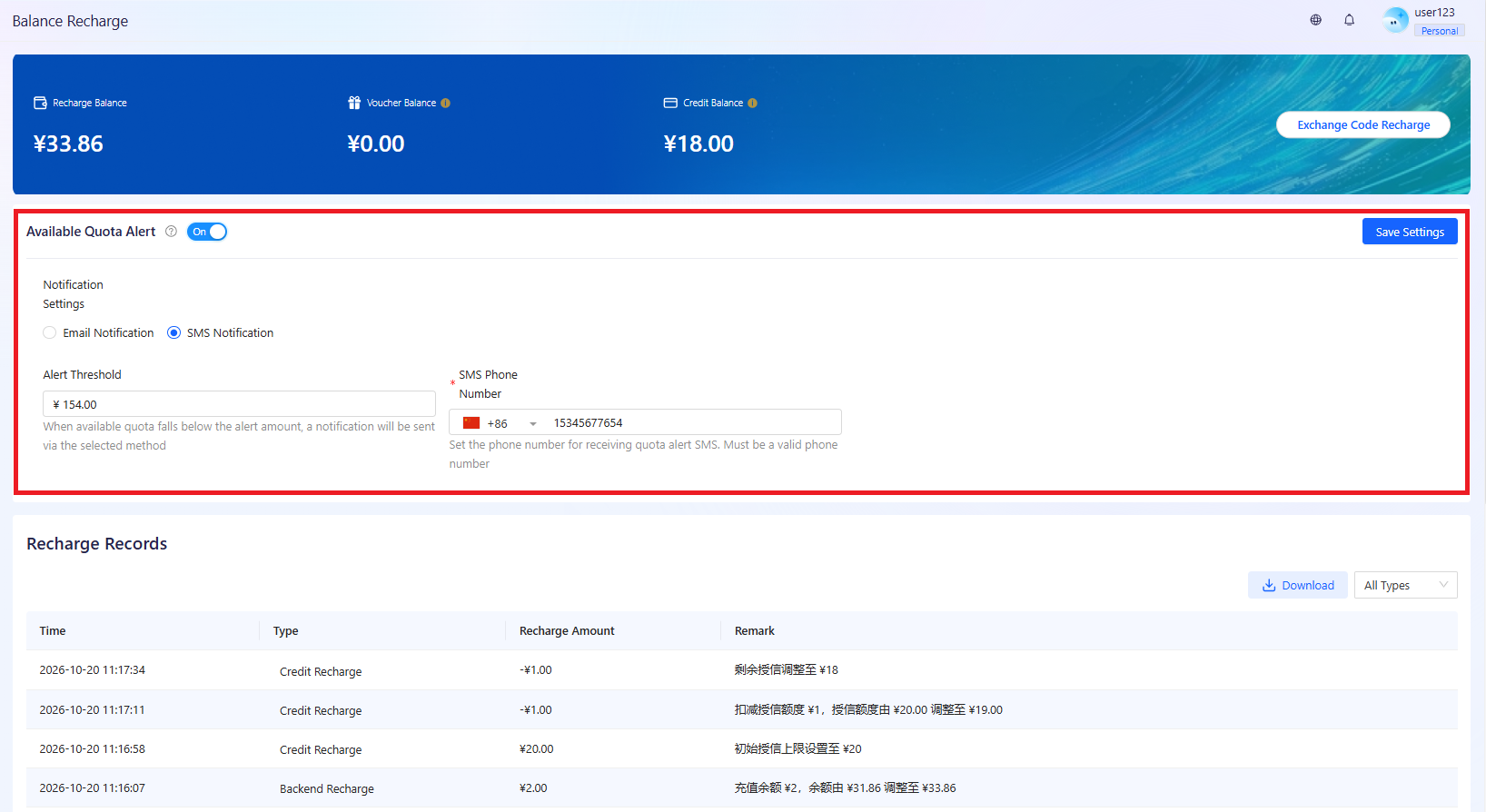
Enter the "Balance Recharge" page.
- Redemption Code Recharge: Click "Redemption Code Recharge" and enter the code you obtained.
- Offline Recharge: If you don't have a redemption code, please contact the administrator to manually recharge in the backend.
4.2 Balance Alerts
To prevent service interruption due to balance exhaustion, please be sure to set balance alerts: Go to "Balance Recharge", set the Balance Alert Value, and choose the notification method. When the balance falls below this value, the system will automatically remind you via SMS or Email.