
Enterprise Space Guide
The Enterprise Space is a team collaboration mode provided by Token Switch, suitable for enterprises or teams to uniformly manage AI resources and calling costs. All members within the enterprise share the enterprise fund pool and achieve refined cost control through the "Budget Allocation Mechanism". In the Enterprise Space, the platform supports:
- Multi-level organizational structure (Enterprise → Department → Member)
- Multi-role permission management (Enterprise Administrator / Department Administrator / Ordinary Member)
- Budget allocation level by level and consumption control
- Enterprise-level calling monitoring and financial management
1. Role Description
| Role | Core Responsibilities | Key Permissions | Data Scope |
|---|---|---|---|
| Enterprise Administrator | Responsible for overall enterprise management and fund control | Enterprise recharge, create departments, allocate department budgets, view and manage enterprise data | All enterprise data |
| Department Administrator | Responsible for department, member, and budget management | Create sub-departments, allocate sub-department budgets, add members, set member budgets, view and manage department data | Department and sub-department data |
| Ordinary Member | Use resources allocated by the enterprise | Create API Keys, call models, view and manage personal data | Personal data only |
2. Enterprise Administrator User Guide
Enterprise administrators have the highest permissions in the Enterprise Space and are responsible for unified management of enterprise structure, budget, and funds.
2.1 Create and Enter Enterprise Space
After entering the console, click the avatar in the upper right corner to perform enterprise-related operations:
- Create Enterprise: Create a new enterprise space
- Switch Enterprise: Switch workspaces between multiple enterprises
2.2 Enterprise Fund Management
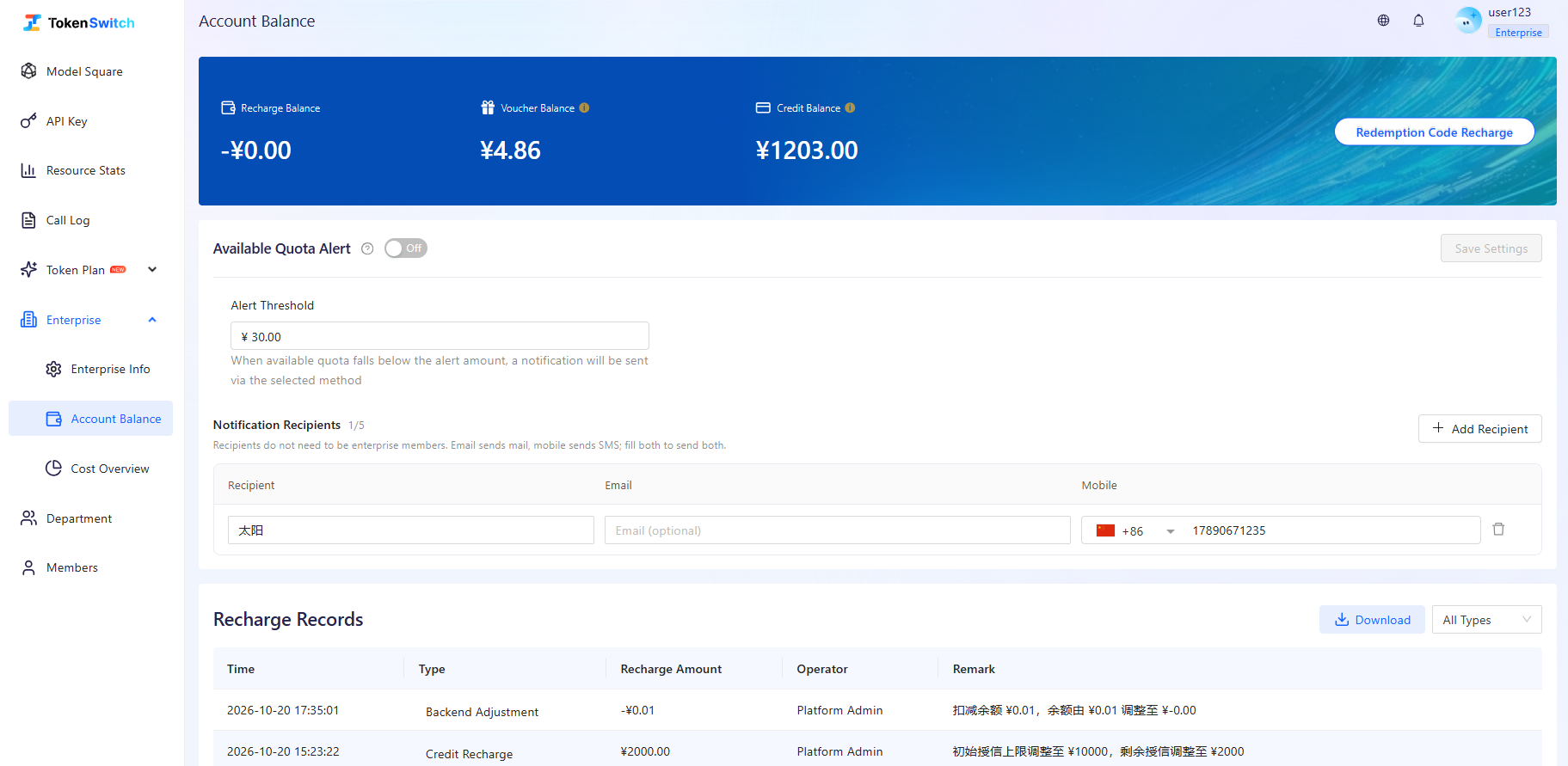
- Enterprise administrators enter the [Account Balance] page for redemption code recharge and balance monitoring
- The platform supports viewing complete recharge records, including recharge amounts, operators, and times, facilitating financial auditing
- All departments and members share the enterprise balance, and all calling fees are deducted from the enterprise account
2.3 Add Enterprise Members
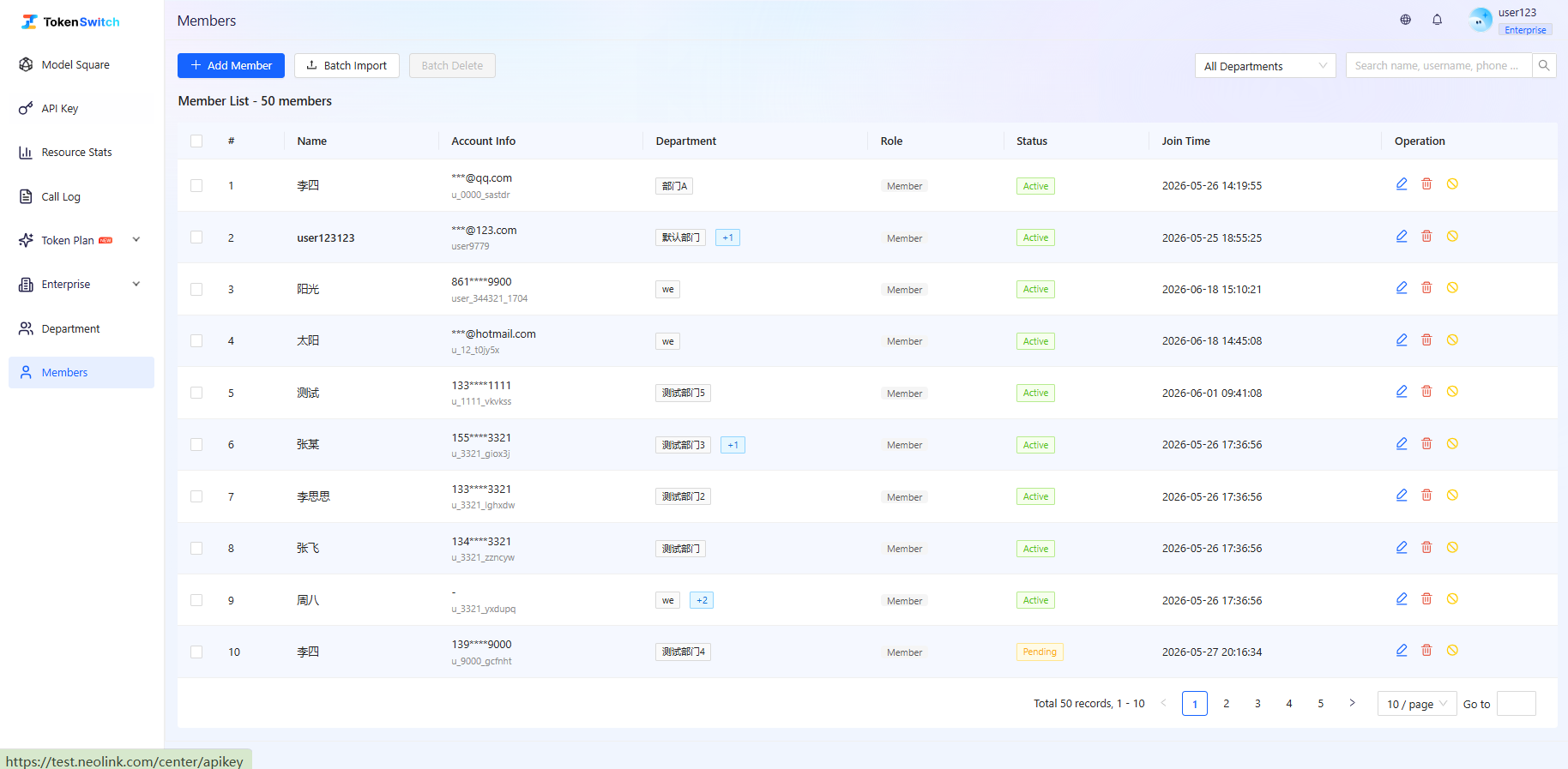
- [Member Management] is the entry point for unified member management within the Enterprise Space. Enterprise administrators can first add users to the enterprise user pool, then assign members to different departments according to organizational needs.
- Add Single Member: Click [Add Member] to manually add a single member, usually requiring phone number and name. The name is used for display and identification of the member within the current enterprise. It is recommended to fill in the commonly used name or nickname within the enterprise.
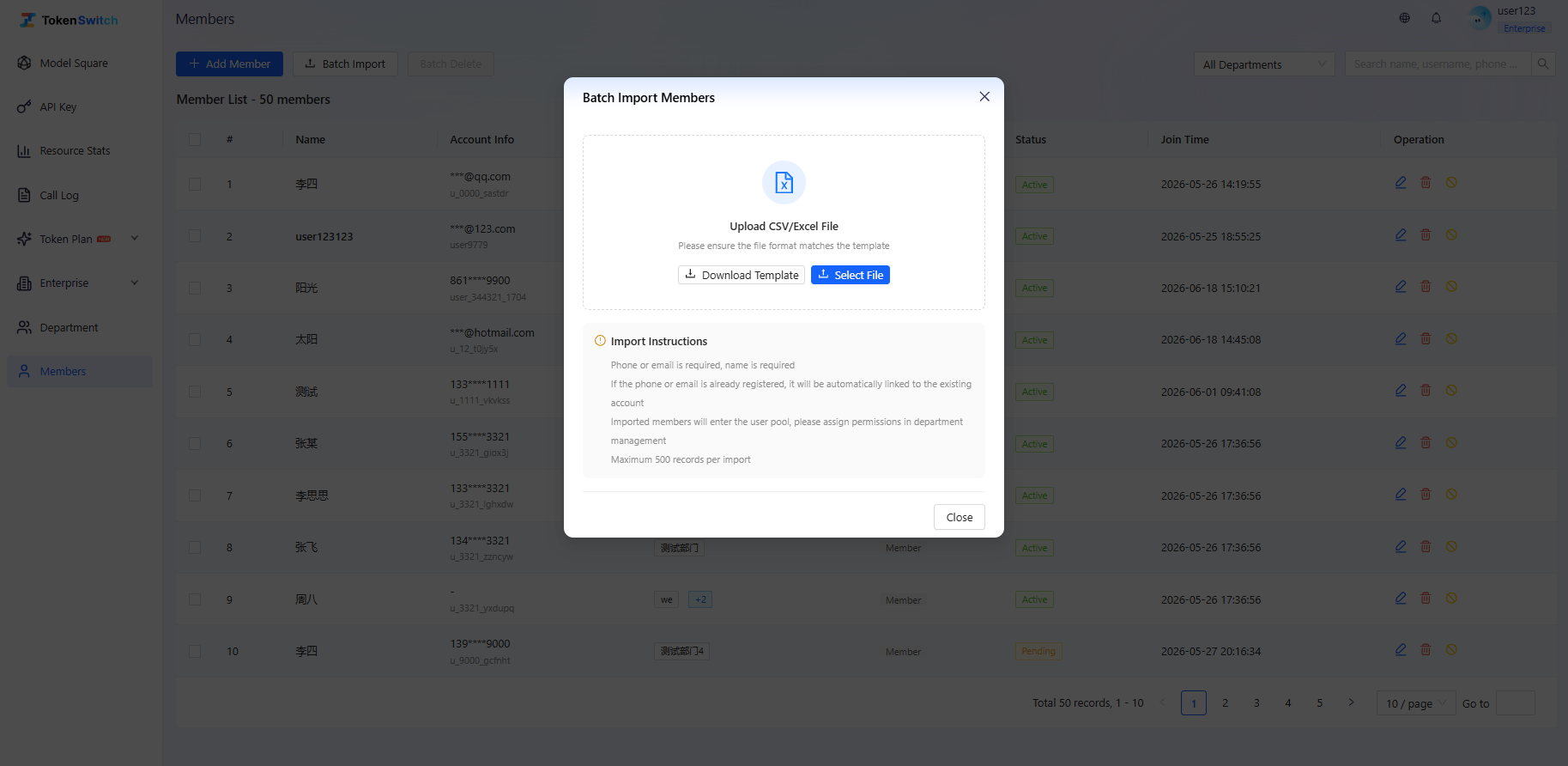
- Batch Import Members: When an enterprise needs to add multiple members at once, click [Batch Import], download the standard import template, fill in the information and upload the file. After the system verifies there are no errors, the import is completed. A maximum of 500 records can be imported at a time. After successful addition, members will enter the enterprise member list. If a member has not completed login or activation, the status may show as "Pending Activation".
- User List: Members in the user pool will display enterprise name, phone number, user ID, department, and role status information, facilitating enterprise administrator identification and management. When there are members with the same name, administrators can distinguish by combining phone number or user ID to avoid selecting the wrong member.
- Quick Search: Enterprise administrators can search members by name, phone number, and other information to quickly locate target users.
2.4 Build Department Structure
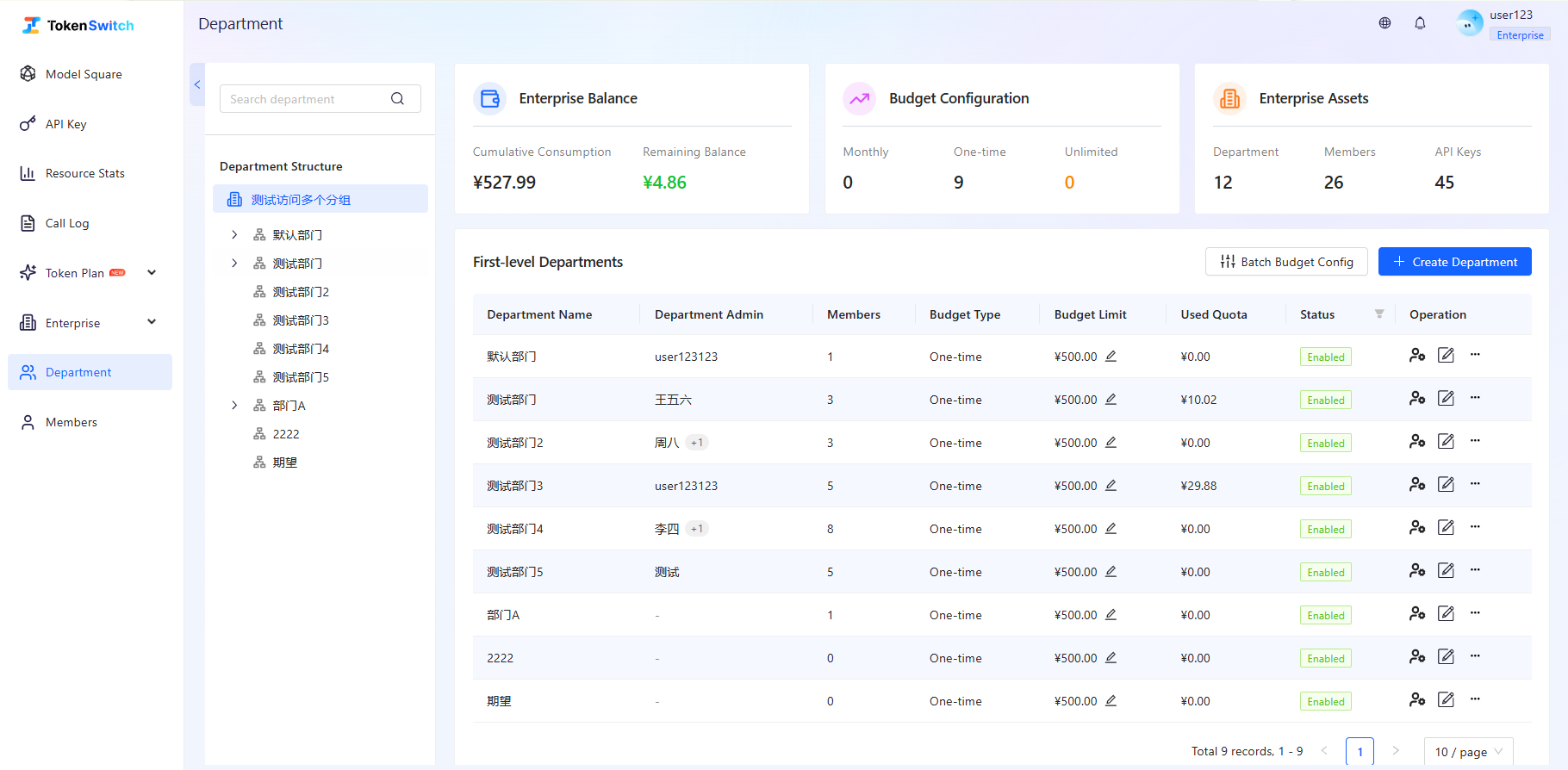
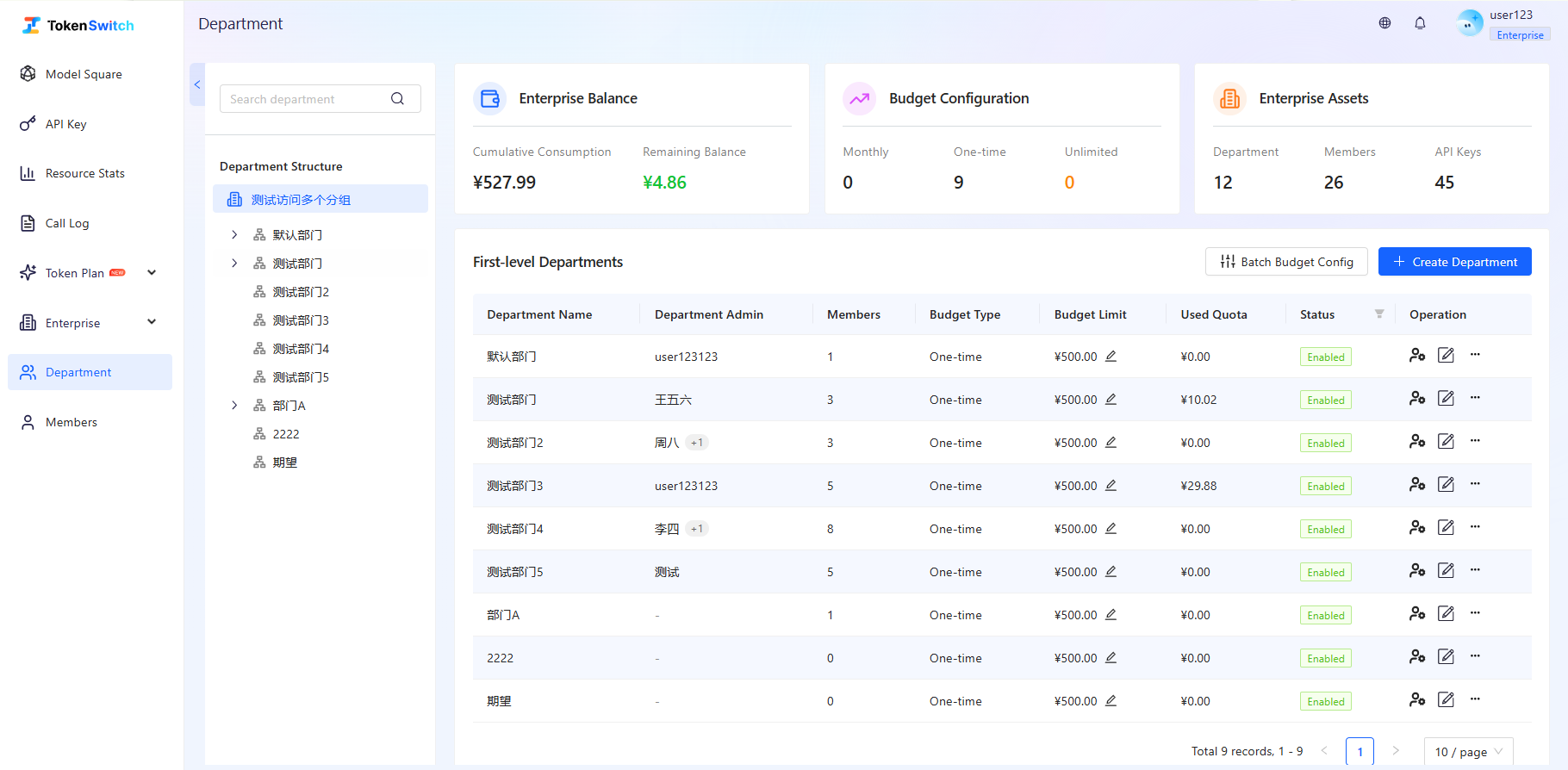
Enter the [Department Management] module to configure organizational structure:
- Create Department: Add a department name to quickly create a department (supports creating multi-level department structures). You can optionally set department default monthly budget, department administrator, and import members.
- Management Hierarchy: Supports tree structure expansion and viewing departments at all levels
- Asset Overview: View enterprise balance and cumulative consumption, this month's allocated budget and actual consumption, enterprise department/member/API Key and other asset data
2.5 Department Budget Allocation
Department budgets in the Enterprise Space are used to control the amount a department can consume within a natural month or on a one-time basis.
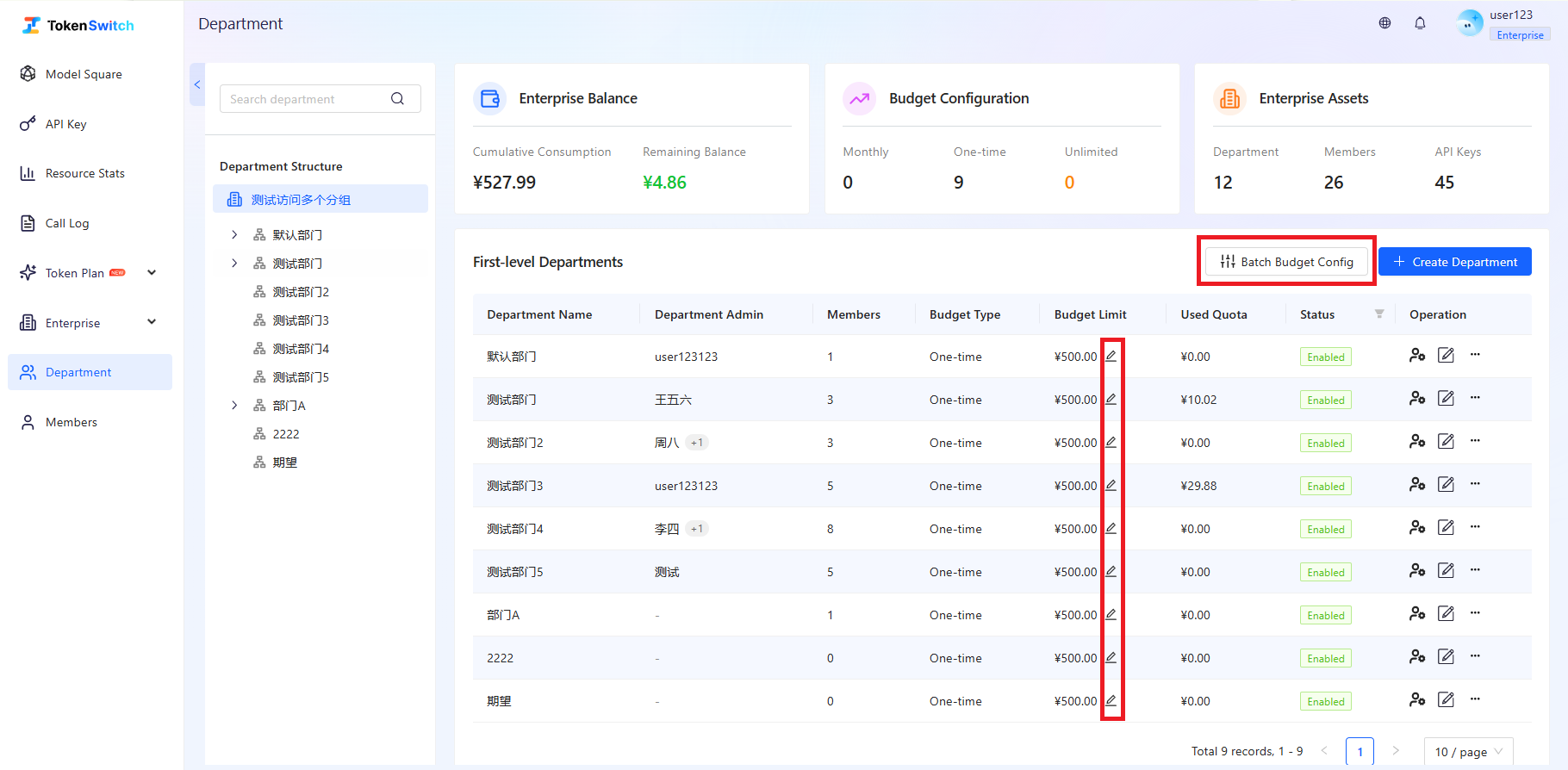
If the budget type is "Monthly", the department's actual available quota is restricted by "Enterprise Balance" + "Department Monthly Budget".
- Default Monthly Budget: The default budget quota that a department can use each month
- When creating a department or editing budget, you can set the "Default Monthly Budget". Leaving it empty means no limit.
- On the 1st of each month, the system will automatically reset the department's current month budget based on the default monthly budget
- Suitable for setting long-term stable department budget rules
- Current Month Budget Limit: A temporary budget quota that only takes effect this month
- In edit budget or "One-Click Configure Budget", you can set the "Current Month Budget Limit"
- The current month budget limit only takes effect this month and has higher priority than the default monthly budget
- Suitable for temporary quota adjustment, supplementary quota, special project budget adjustment, and other scenarios
- If the budget type is "One-time", the department's actual available quota is restricted by "Enterprise Balance" + "Department One-time Budget"
- One-time Budget: One-time quota
- In edit budget or "One-Click Configure Budget", you can set the "One-time Budget"
- The one-time budget can be set with an upper limit; it is used up and is not reset next month
- Suitable for new team pilots, and for adding budget when it is used up in the current month
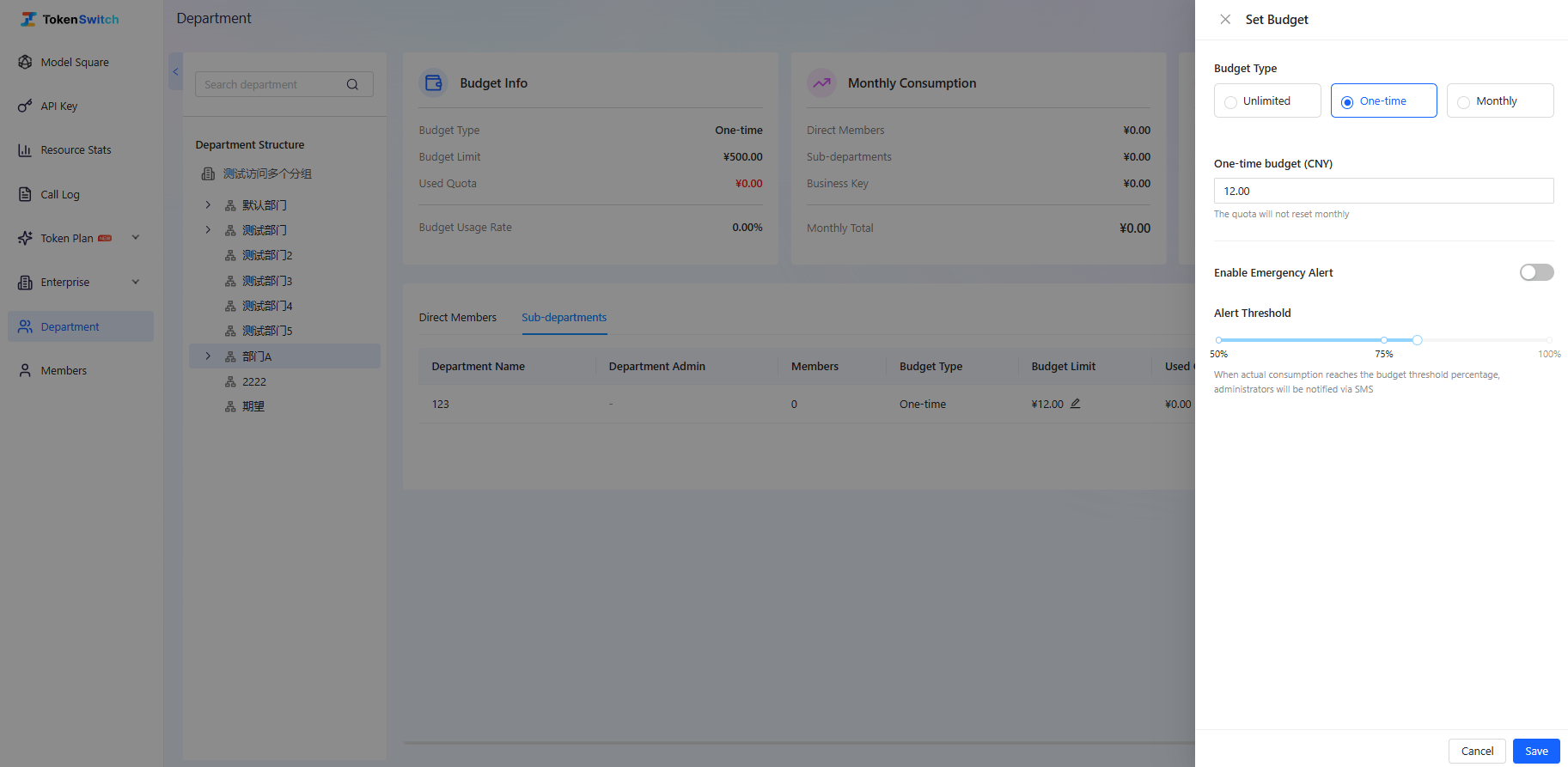
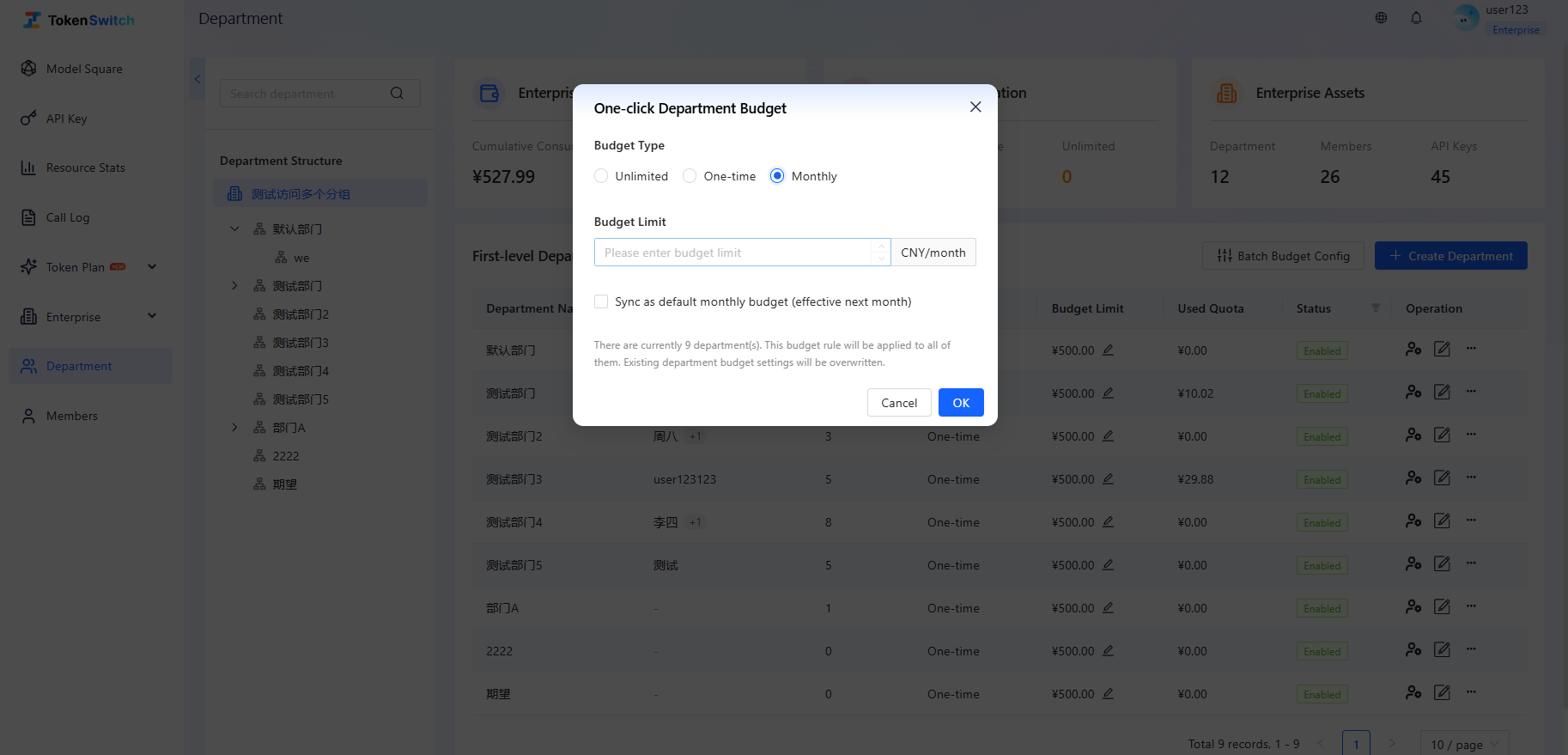
- One-Click Configure Budget: Enterprise administrators can quickly adjust department budget settings through "One-Click Configure Budget"
- The budget set through "One-Click Configure Budget" will be uniformly applied to all departments. If a department already has a budget configuration, it will be overwritten by the one-click configuration.
- When configuring by month, you need to fill in the current month's department budget limit and whether to synchronize as the default monthly budget. If "Synchronize as Default Monthly Budget" is checked, the amount will take effect as the department's default monthly budget starting from next month.
- Budget Consumption Rules
- When members call models in the Enterprise Space, the fees will be counted towards their department's current month consumption
- When a department's current month consumption reaches the current month budget limit, members under that department will not be able to continue calling models
- If the department budget does not set a limit, the department is not restricted by department budget, but is still restricted by enterprise balance, member budget, API Key quota, etc.
2.6 Enterprise-Level Monitoring and Analysis
In the Enterprise Space, administrators can use the "Resource Statistics", "API Key", and "Calling Logs" modules to uniformly monitor and manage resource usage within the enterprise.
(1) View Enterprise Overall Usage
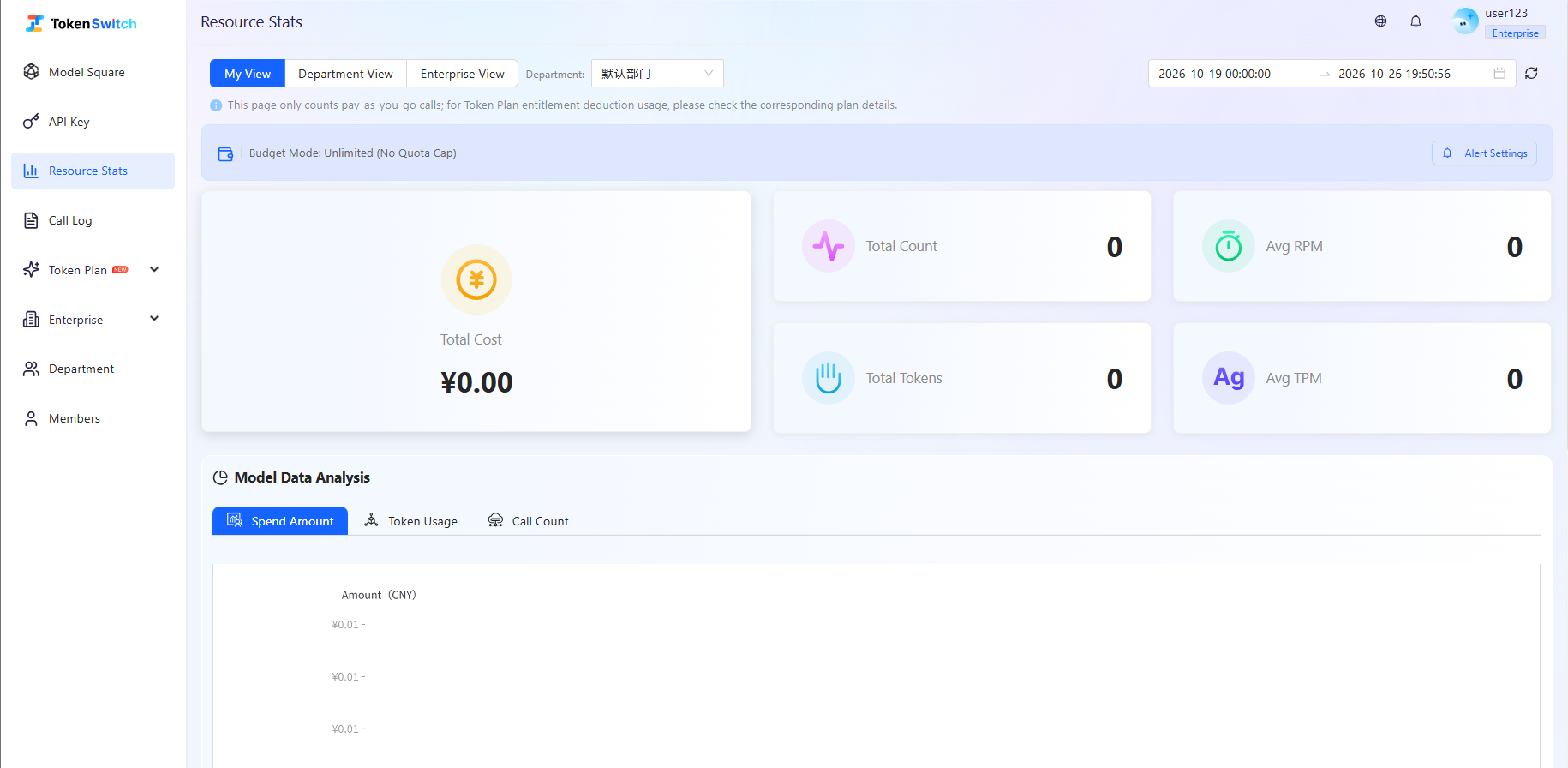
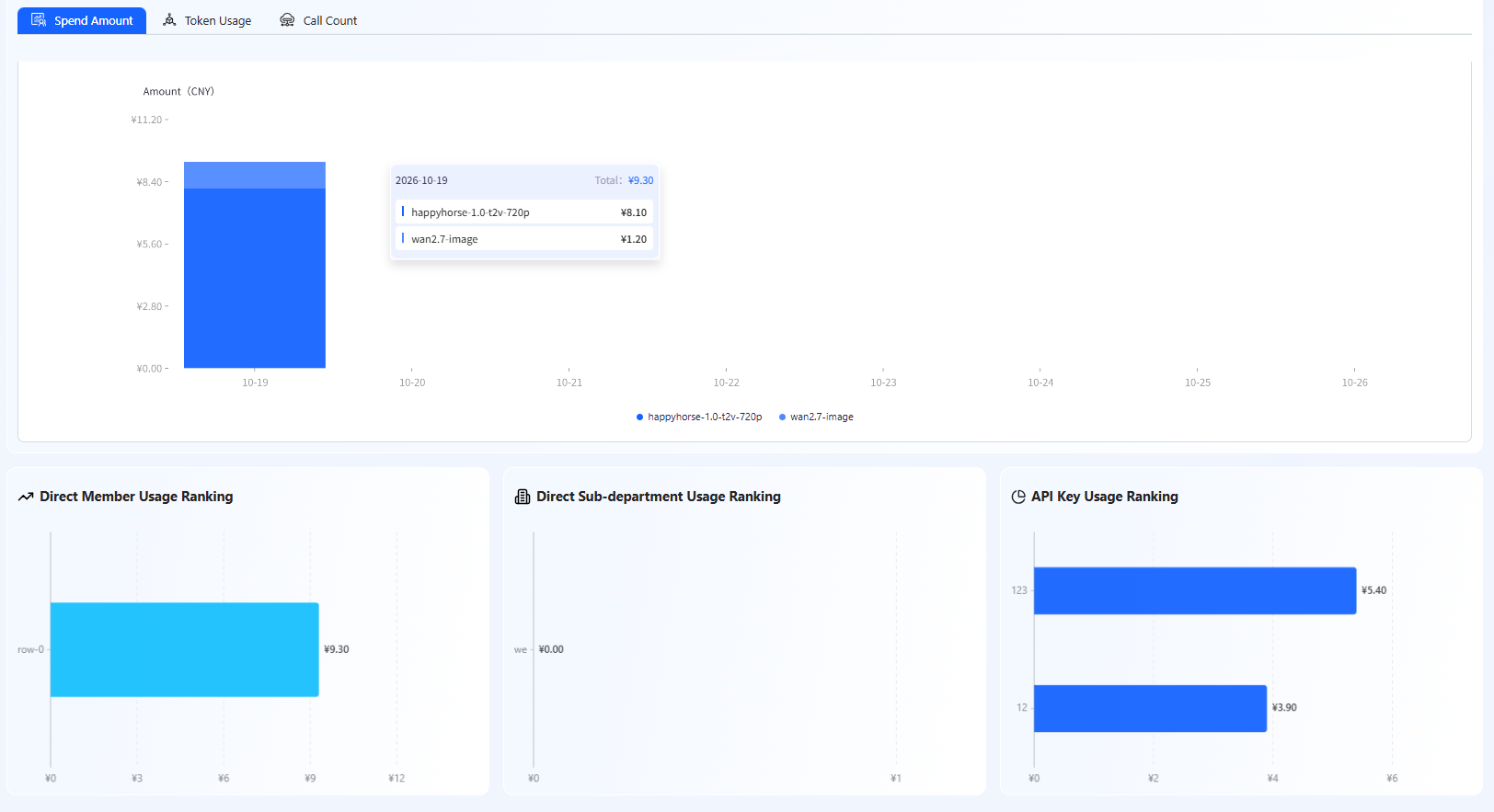
Enter the [Resource Statistics] page and switch to "Enterprise View" to view the enterprise's overall usage within a specified time range.
- The top of the page displays core indicators for the current statistical period, including consumption amount, request count, Token usage, and average RPM and TPM. These indicators reflect the enterprise's current calling scale and system load.
- Calling Data Analysis: Includes model consumption distribution, model calling trends, and consumption rankings of departments, members, Keys, etc. Through this information, enterprise administrators can quickly understand the usage of different models and different departments, thereby optimizing model selection and budget allocation.
(2) Manage Enterprise API Keys
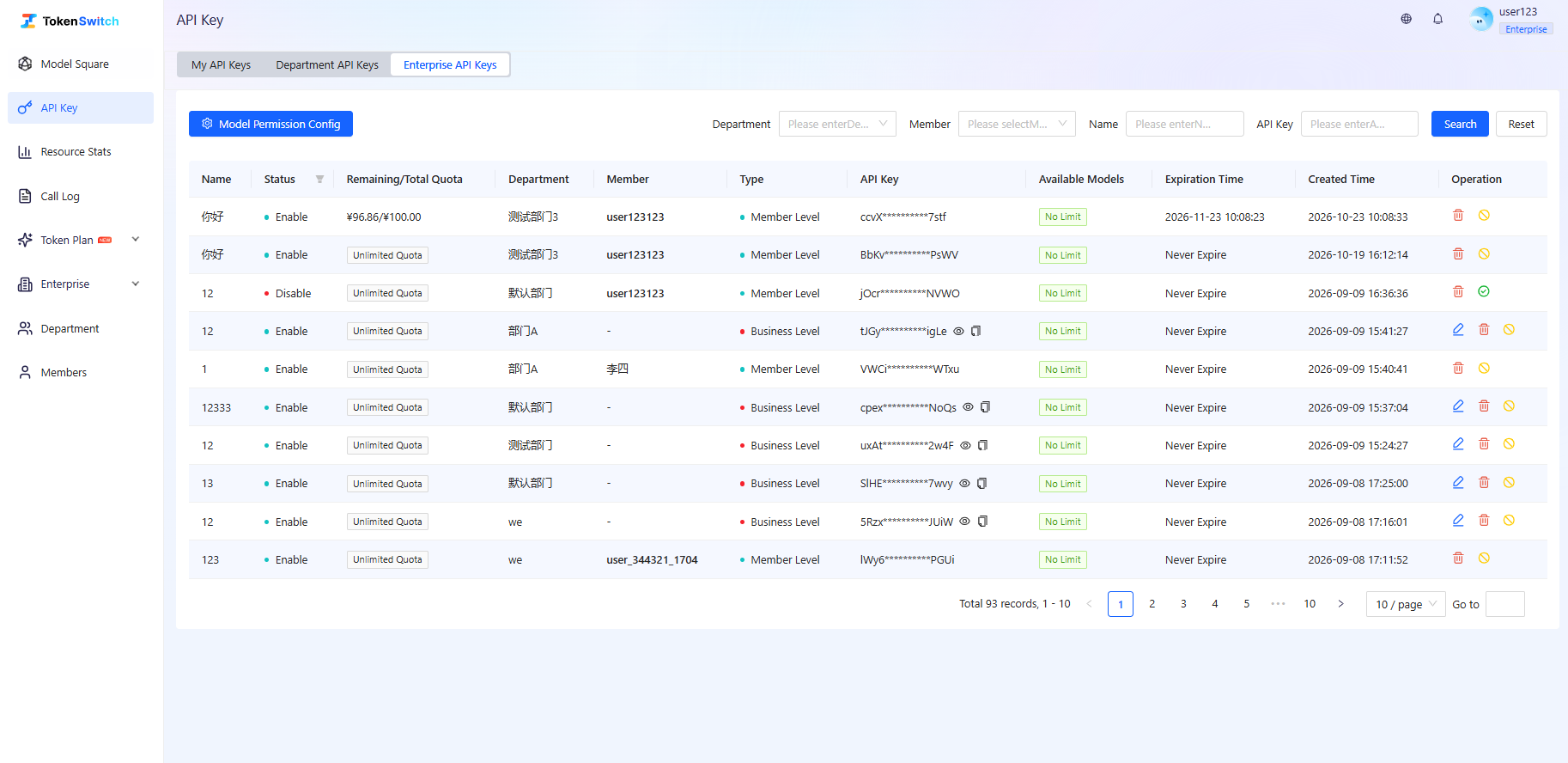
Enter the [API Key] page and switch to "Enterprise API Key" view to view all API Keys within the enterprise.
- The page supports filtering by department, member, Key name, or API Key to quickly locate target Keys.
- The list displays basic information of each Key, including department, creator, Key type, quota status, available model range, and current status.
- Administrators can enable, disable, edit, or delete API Keys. When Key usage abnormalities or security risks are found, control can be timely implemented through disable or delete operations.
(3) View Calling Details (Usage Logs)
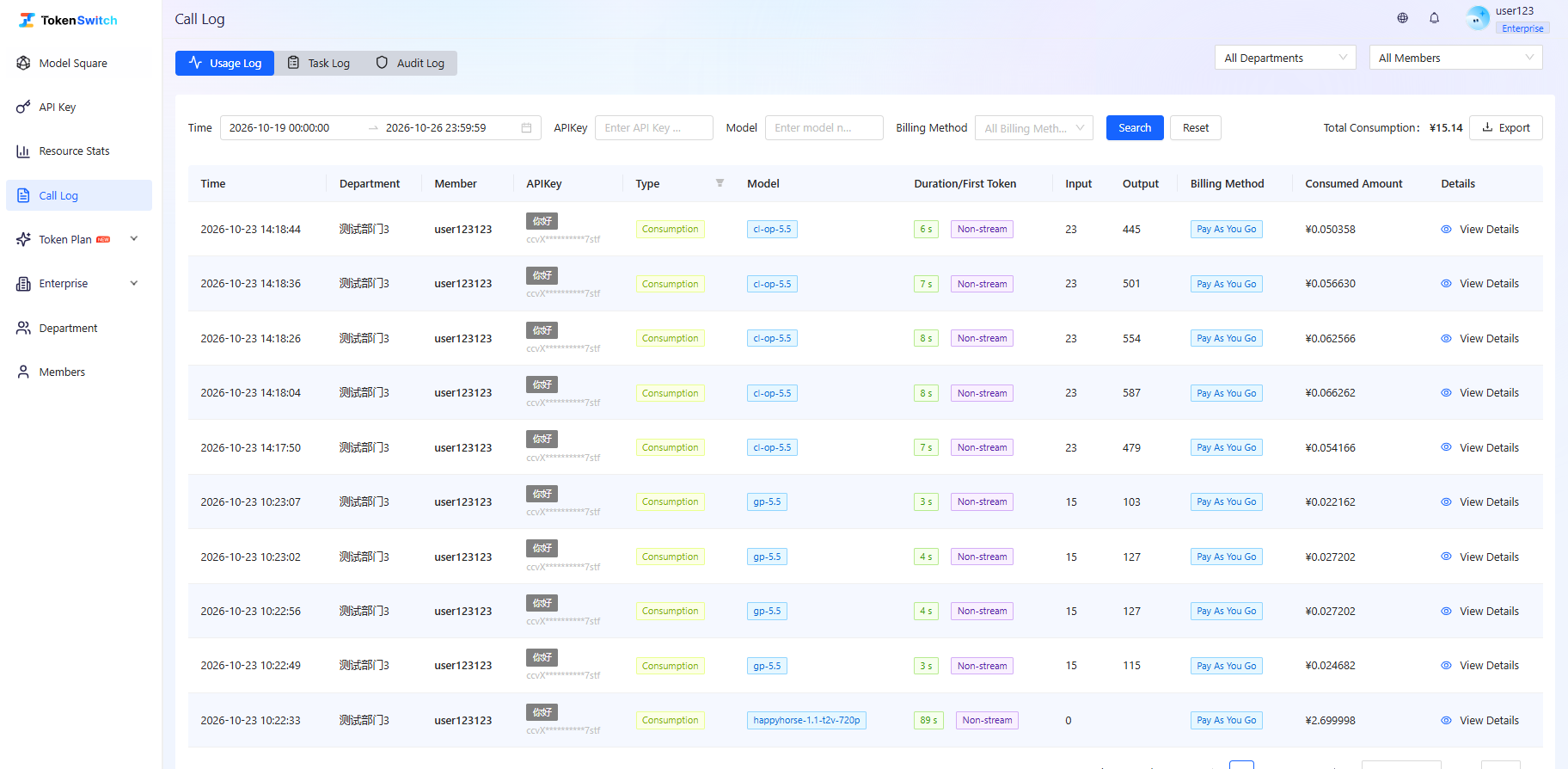
Enter the [Calling Logs] page, which defaults to displaying "Usage Logs" used to record detailed information of every model call by all members within the enterprise, for cost tracing and problem troubleshooting.
- Log content includes calling time, department and member, API Key, type, model name, Token consumption, billing method, consumption amount, and calling status.
- Supports querying by time range, department, member, API Key, or model to quickly locate specific calling records.
(4) View Task Execution (Task Logs)
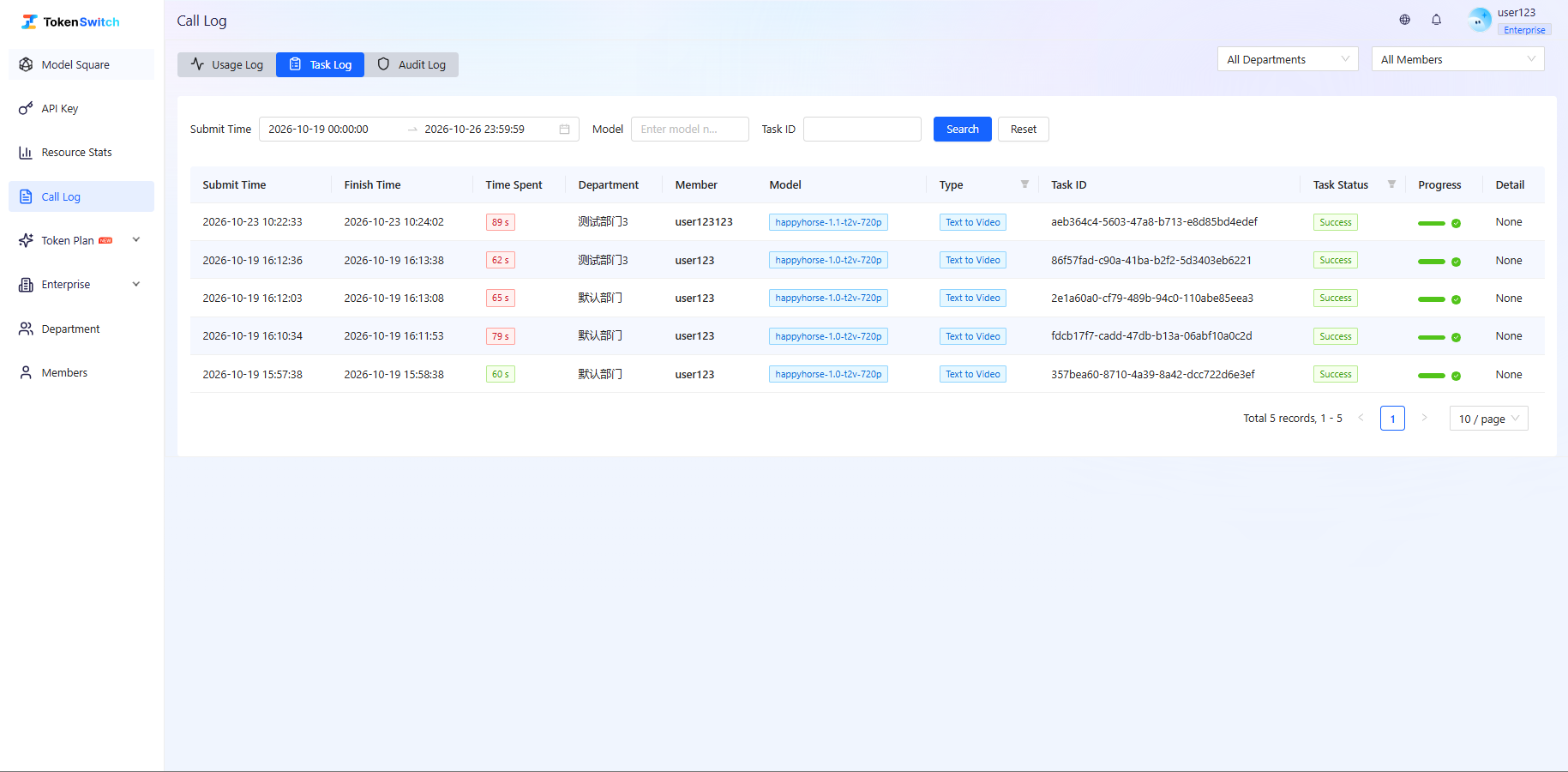
- Switch to "Task Logs" in [Calling Logs] to view the execution of asynchronous tasks called by all members within the enterprise.
- Task logs record task submission time, end time, execution duration, model information, and task status, suitable for scenarios that need to track execution processes, such as generation tasks or time-consuming calls.
(5) View Operation Records (Audit Logs)
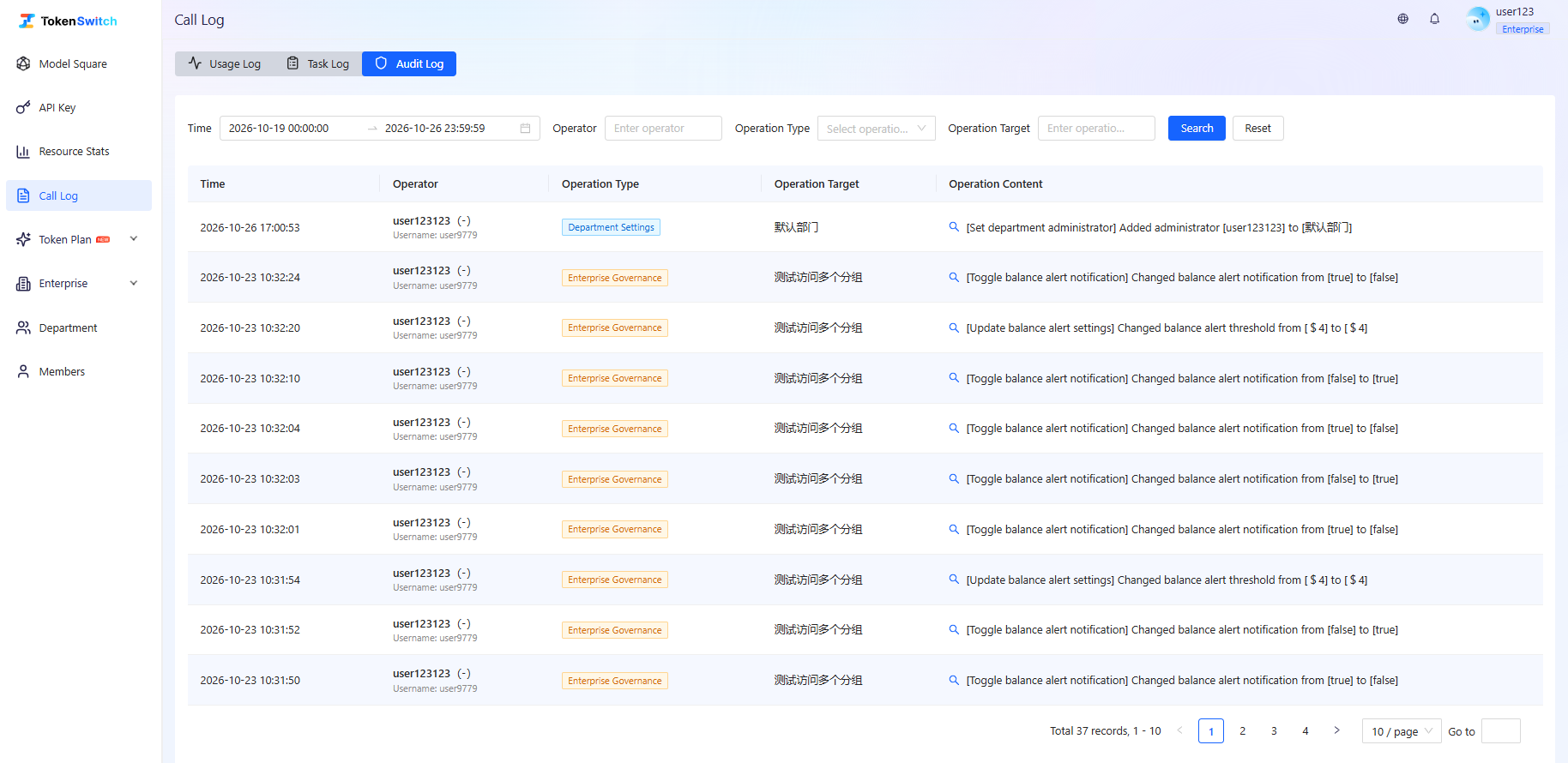
Switch to "Audit Logs" in [Calling Logs] to view management operation records within the enterprise.
- This module is mainly used for operation tracing and permission auditing to ensure key operations can be recorded and queried.
- Logs record operation time, operator, operation type, operation object, and specific operation content, such as creating departments, modifying member information, etc.
2.7 Balance Alert Mechanism
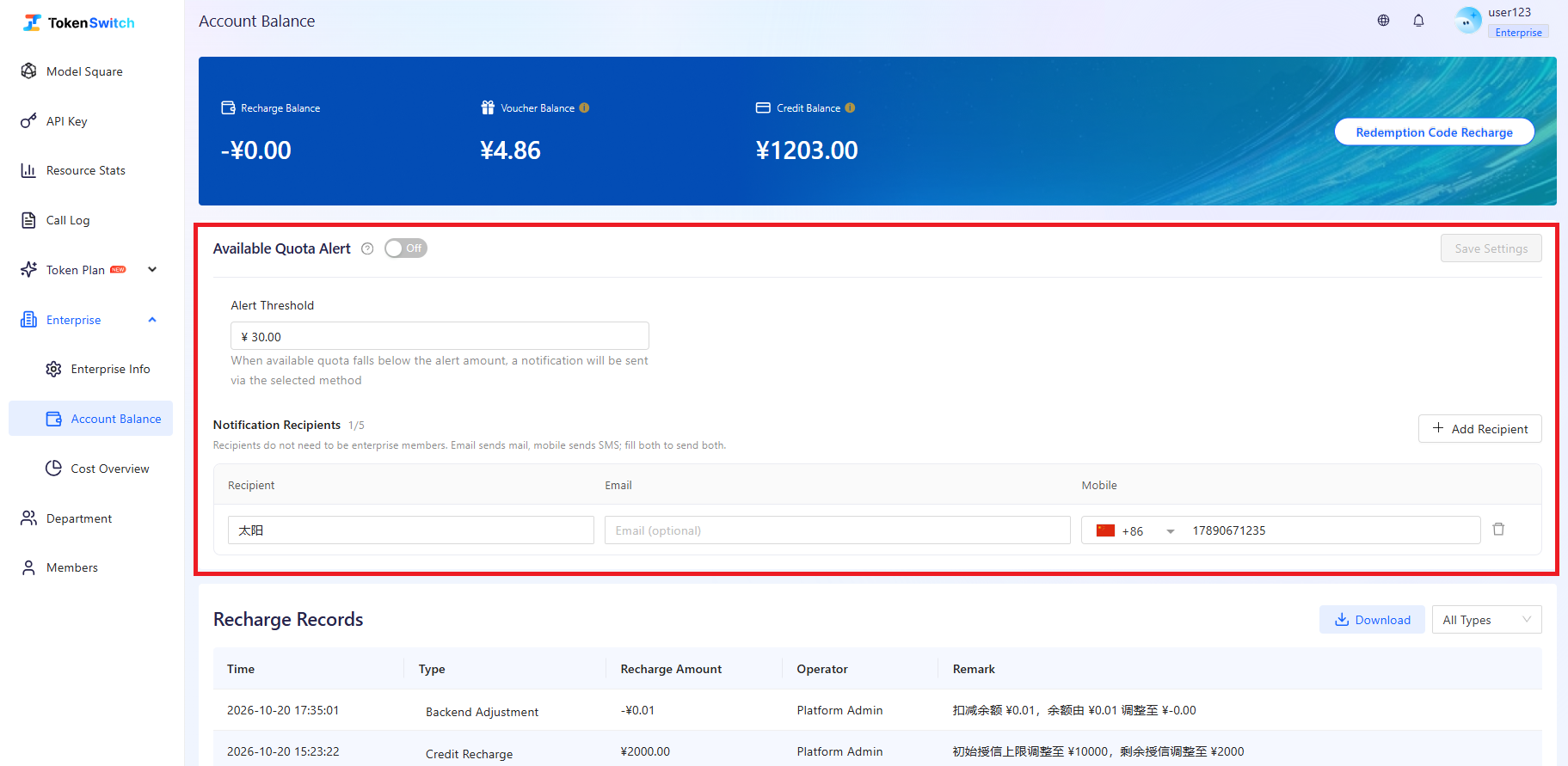
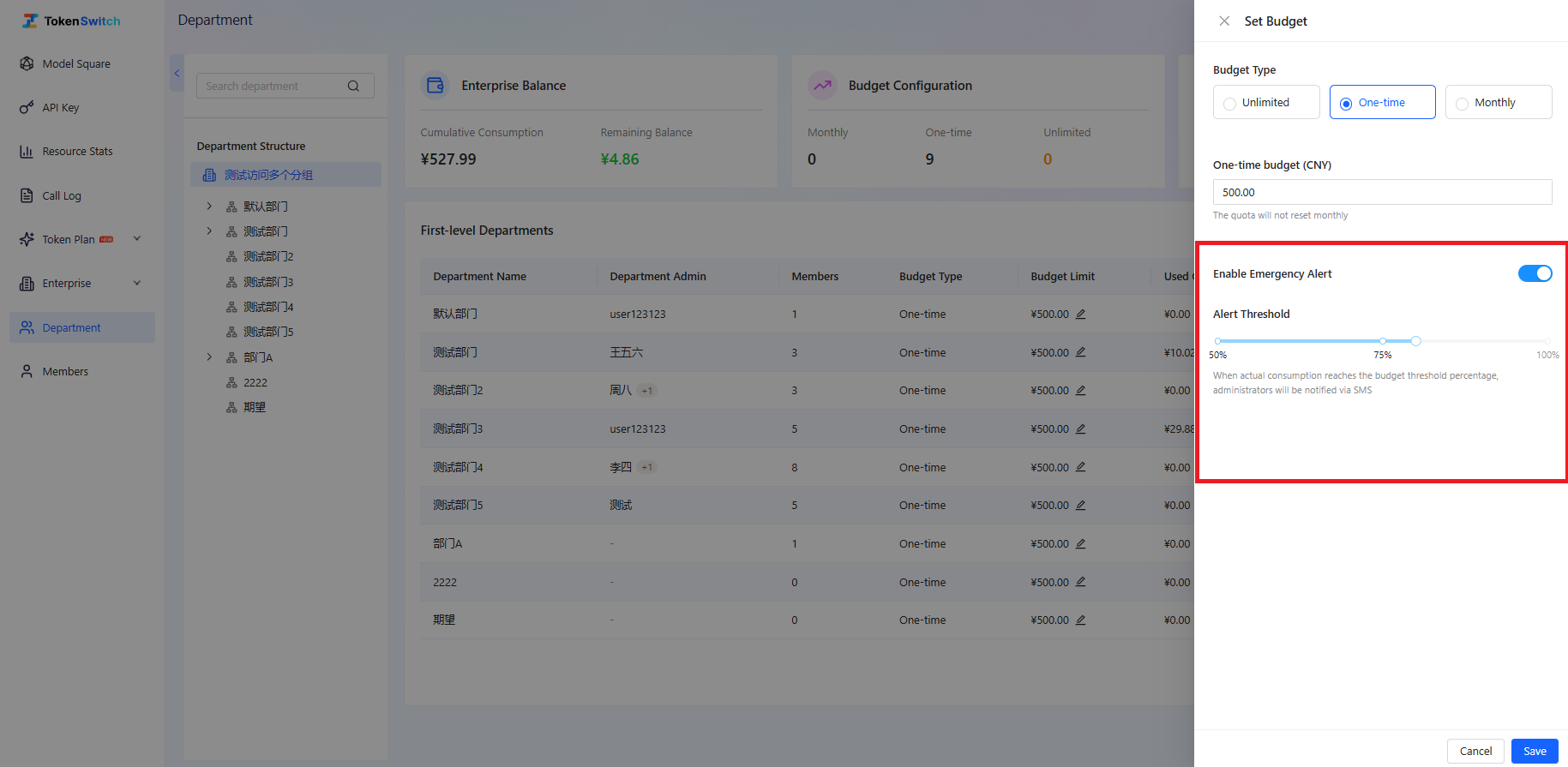
The system provides a two-layer alert mechanism to ensure business is not interrupted due to insufficient balance.
- Enterprise-level Alert: Reminds designated notification group members when balance is insufficient, and supports custom additions
- Department-level Alert: Triggers reminders when budget usage reaches threshold
3. Department Administrator User Guide
Department administrators are responsible for the organization and member management of their department, as well as controlling member usage quotas, and can view resource usage within their department scope.
3.1 Department Structure Management
Enter the [Department Management] module, select the current department, and configure department structure.
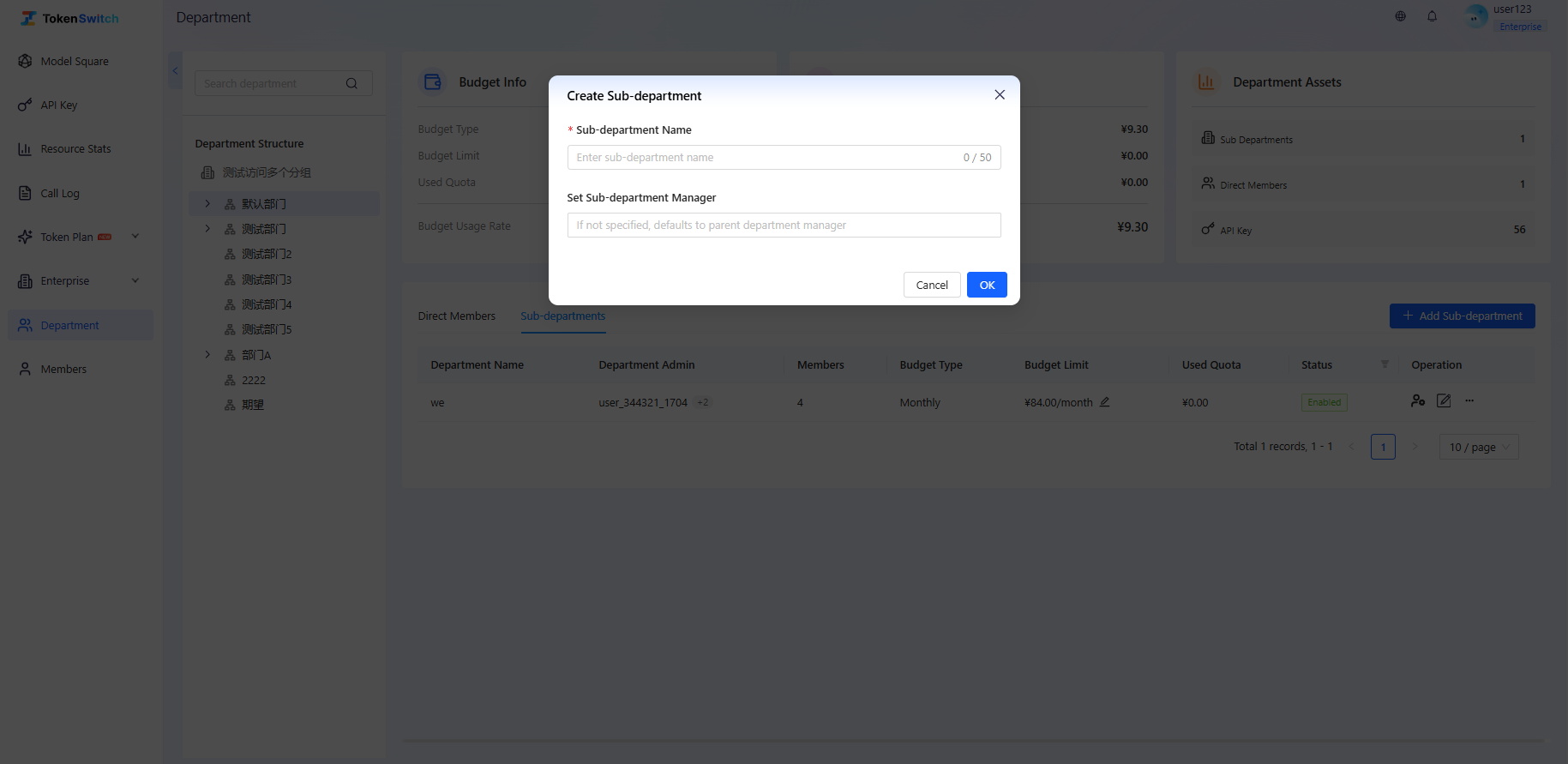
- Create Sub-department: Add a new sub-department under the current department, supporting multi-level structure
- View Department Structure: The left side supports tree structure expansion to view the department and its sub-departments
- Department Asset Overview: View current department budget allocation, real-time consumption, and the number of sub-departments, members, and API Keys under the department
3.2 Member Management
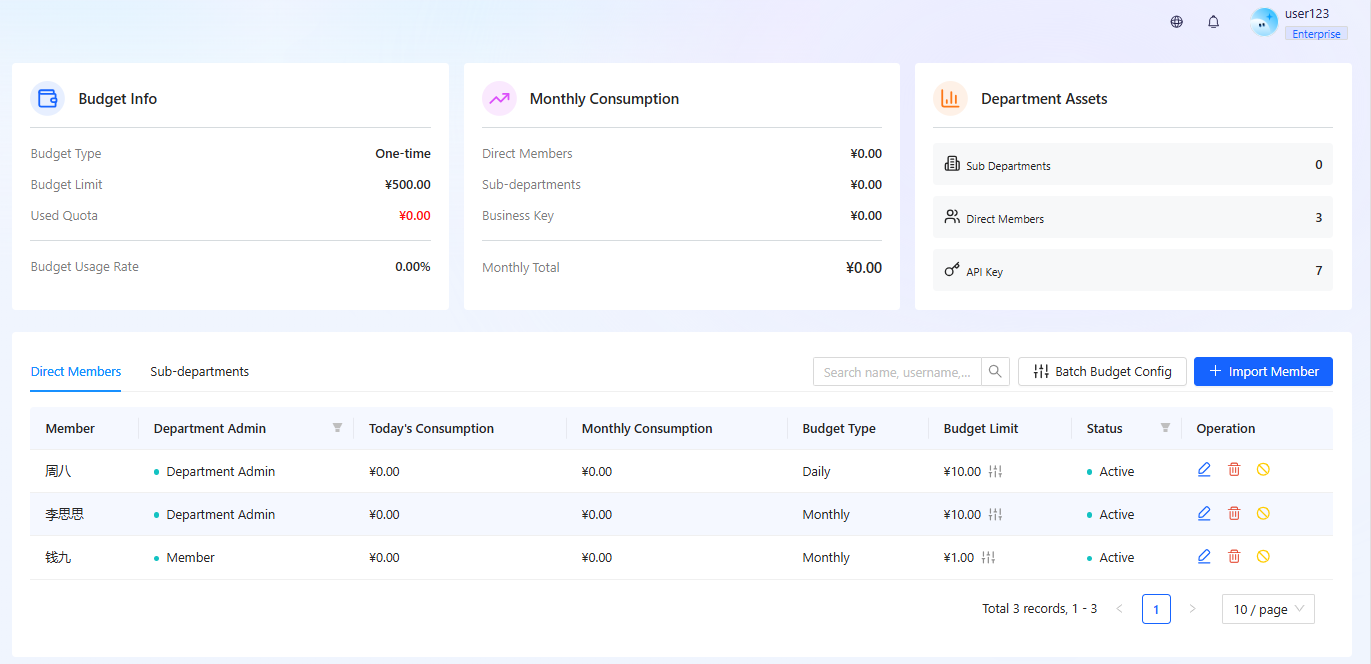
In the department details page, switch to the "Direct Members" list to manage members.
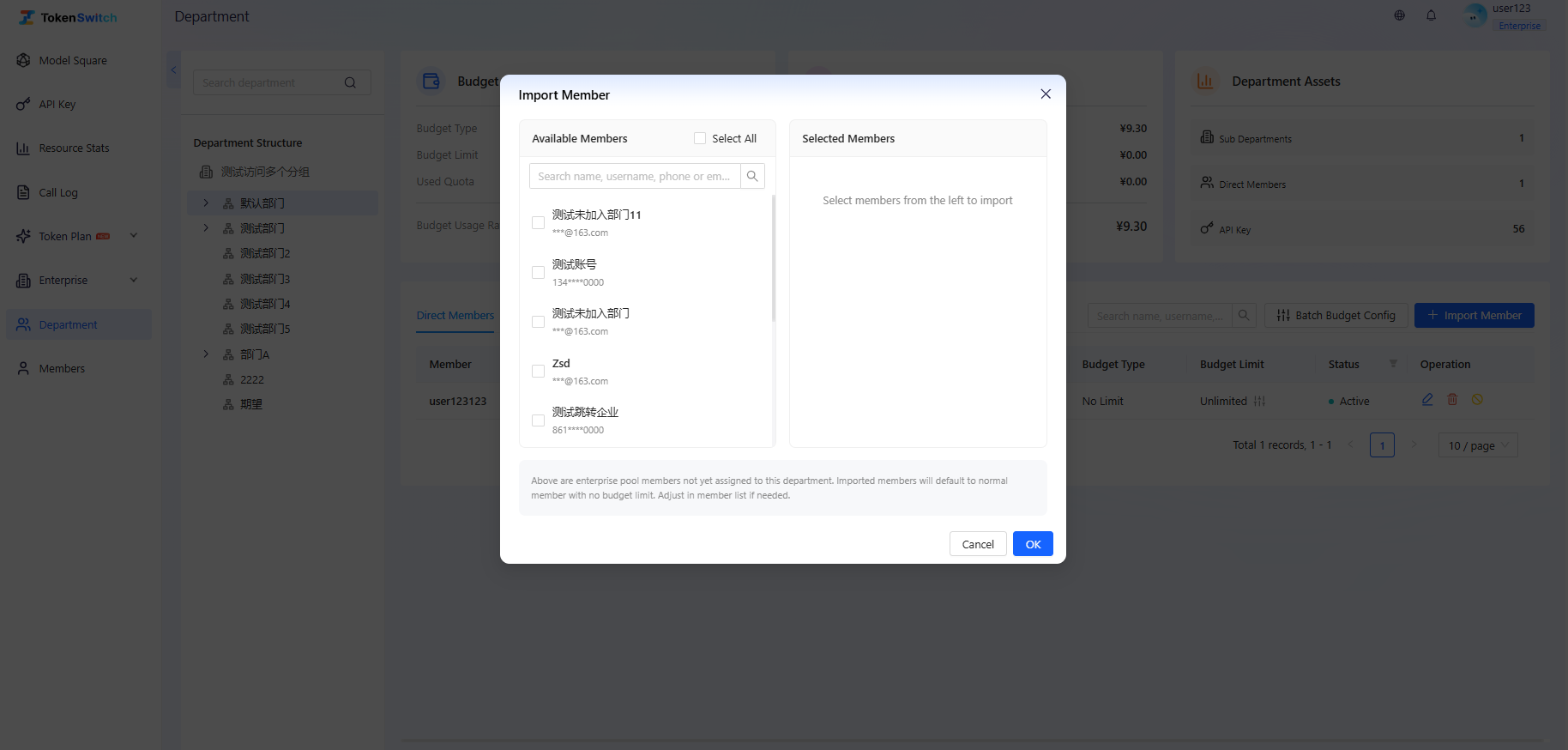
- Import Members: Click "Import Members" to batch add members from the member pool who have no assigned department to the current department, with the default role being Ordinary Member
- Edit Members: Supports modifying member roles or adjusting their usage limits
- Remove Members: Remove members from the current department (members will no longer be able to use department resources)
3.3 Member Budget Control
Department administrators can perform refined control of member usage quotas to prevent resource abuse or abnormal consumption.
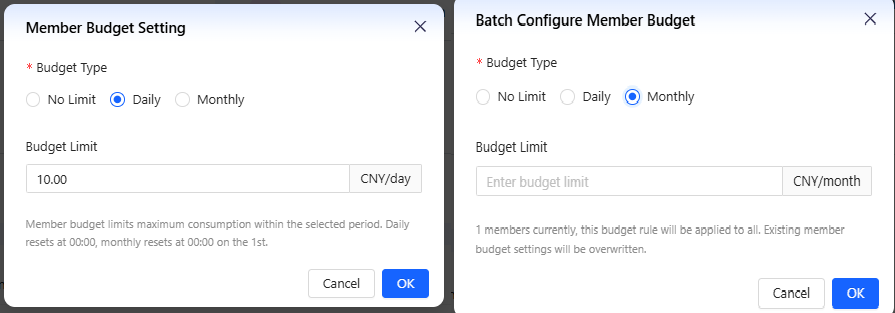
- In the member list, you can set "Daily Budget" or "Monthly Budget" for individual members to restrict their daily or monthly consumable amount.
- Also supports batch setting of unified budget limits for all members in the current department through "One-Click Configure Budget".
Budget Rules:
- If the budget type is "No Limit", the member's actual available quota is only restricted by "Department Monthly Budget"
- If the budget type is "Daily", the member's daily actual available quota is restricted by "Department Monthly Budget" + "Personal Daily Budget"
- If the budget type is "Monthly", the member's monthly actual available quota is restricted by "Department Monthly Budget" + "Personal Monthly Budget"
3.4 Department API Key Management
Enter the [API Key] page and switch to "Department API Key" view.
- View all API Keys under the current department
- Supports filtering by member, Key name, and other conditions
- Can view Key quota, status, model permissions, and other information
- Can enable, disable, edit, or delete Keys
- Unified Rule Configuration and Business Key Creation
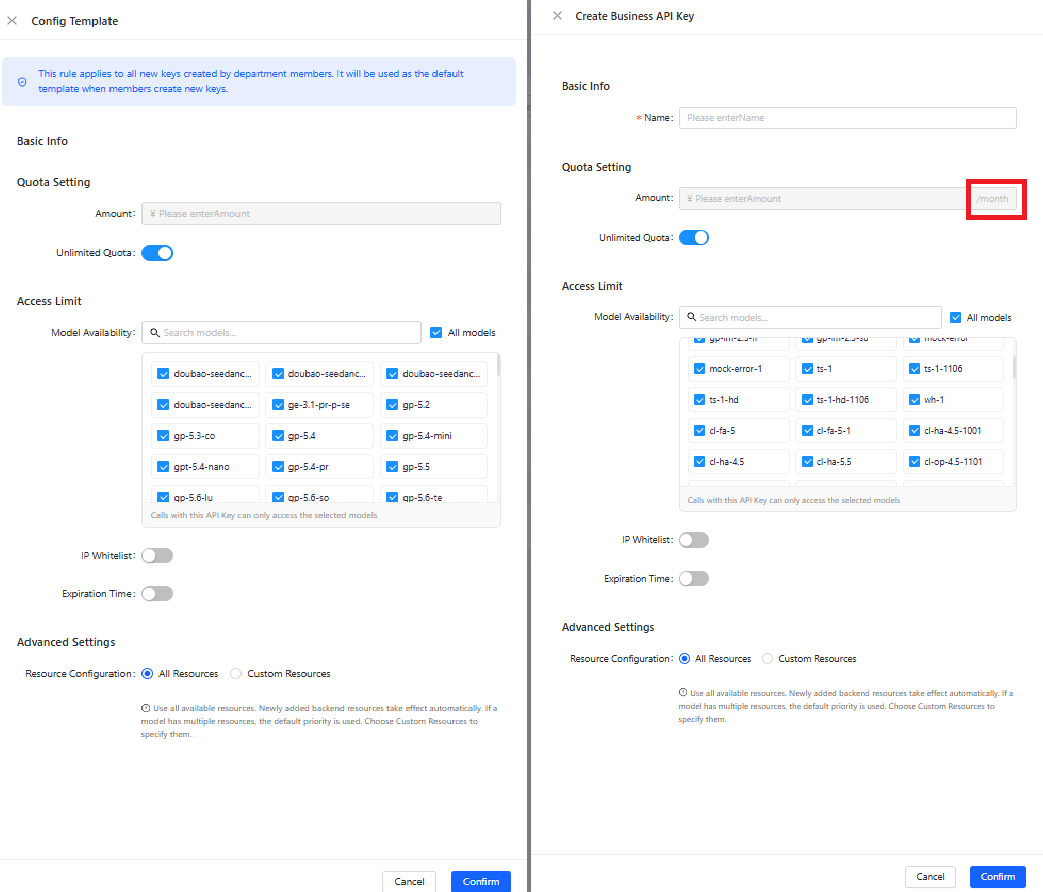
- Click "Configure Template" to set default configuration rules for API Keys in the current department. After setup, when department members create new API Keys, they will inherit this template configuration by default.
- Template configuration includes: expiration time, default quota (supports setting unlimited quota), model access range, IP whitelist restrictions
- Create Business API Key
- Does not belong to individual members but to the department, can be used for server-side calls or shared business scenarios
- Supports setting monthly quota (different from member Key's personal consumption), occupying department monthly budget

3.5 Department Data Viewing
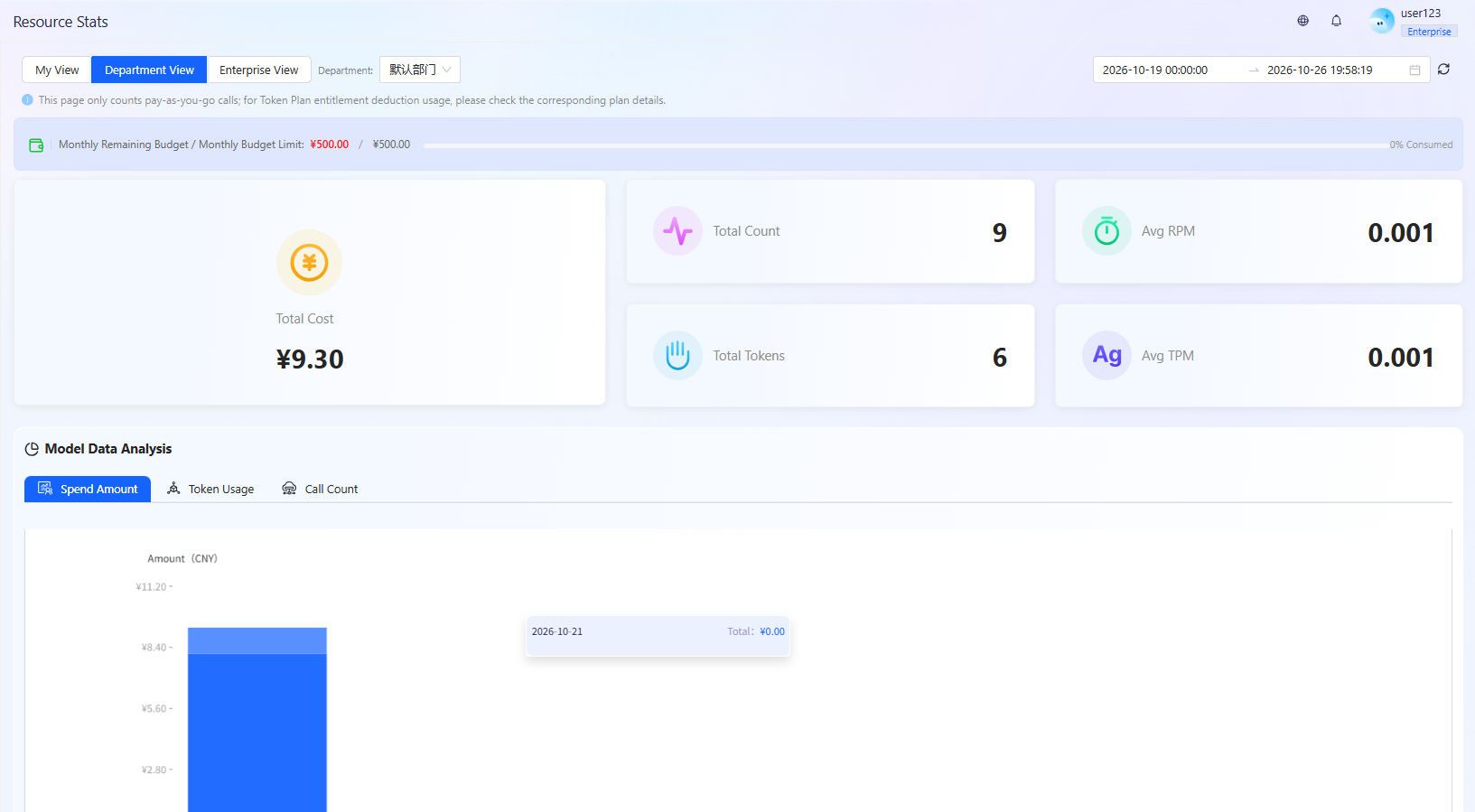
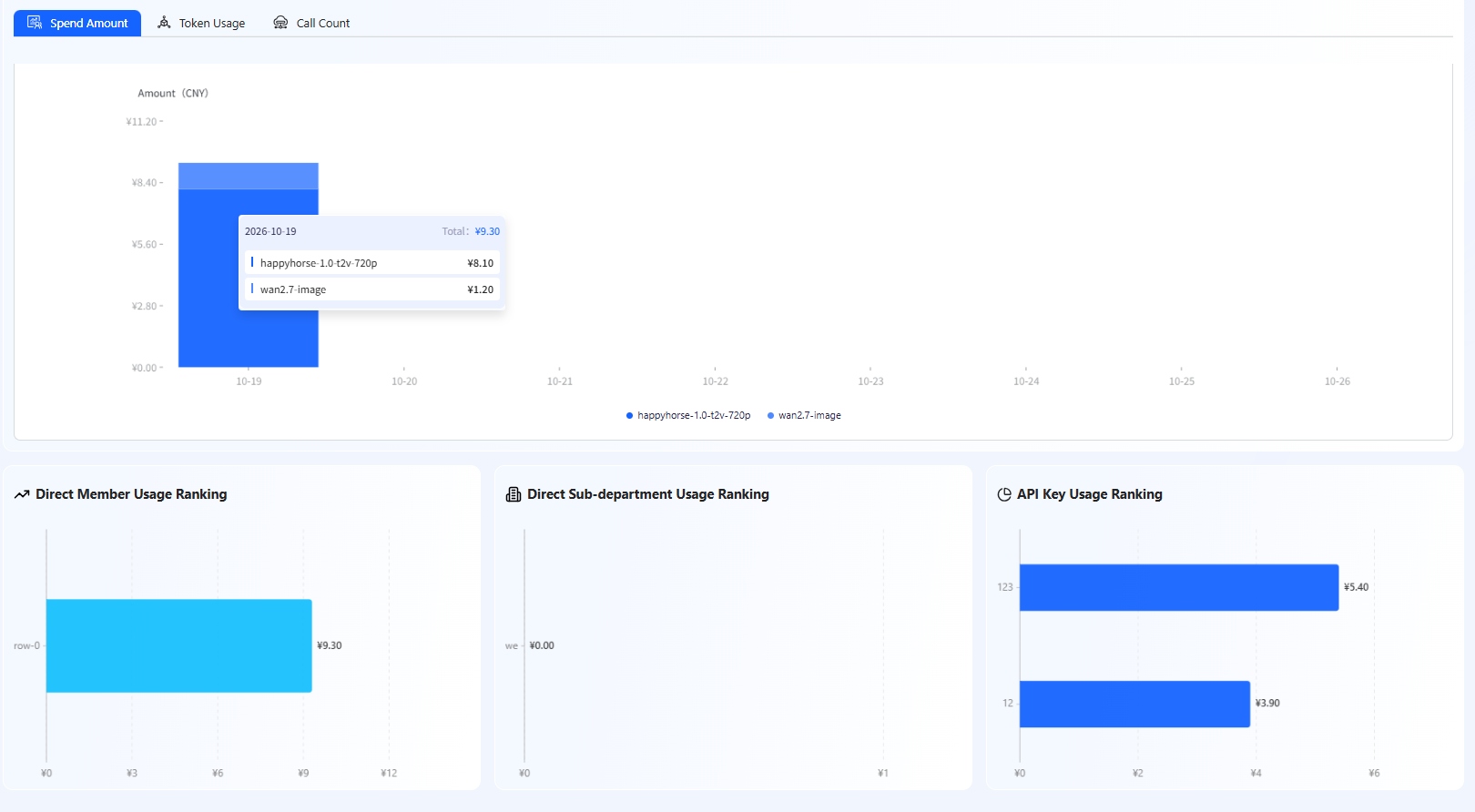
Enter the [Resource Statistics] page and switch to "Department View" to view the overall usage of the current department. The page displays:
- Department total consumption amount, call count, Token usage, and other core indicators
- Model consumption distribution and calling trends
- API Key usage within the department
3.6 Department Calling Log Viewing
Enter the [Calling Logs] page to view calling records of members within the current department.
- Logs support filtering by time, member, API Key, model, and other conditions for troubleshooting or analyzing consumption sources
- Usage Logs: View detailed information of each call (member, model, cost, etc.)
- Task Logs: View asynchronous task execution status
4. Ordinary Member User Guide
Ordinary members are users in the Enterprise Space, mainly responsible for creating API Keys and calling models for business development. Their usage is similar to Personal Space, but resources are uniformly provided by the enterprise.
4.1 Usage Prerequisites
Ordinary members do not need to perform recharge operations, as all resources are uniformly provided by the enterprise. During usage, when the following limits are reached, members will not be able to continue calling models:
- Monthly budget limit of the department
- Personal daily consumption limit (set by department administrator)
4.2 Create and Manage API Keys
Enter the [API Key] page, which defaults to displaying "My API Keys" for managing personally created Keys.
- Click "Create API Key", fill in the name and select a group to complete creation
- Can set Key expiration time, quota limit, model range, and IP whitelist as needed
- Supports enabling, disabling, editing, or deleting Keys
4.3 View Personal Usage
- Switch to "My View" in the [Resource Statistics] page to view personal consumption amount, request count, and Token usage
- View personal calling records in [Calling Logs], including model, cost, and calling status